Claude
Below is a step-by-step guide for connecting the Postmypost MCP in the Claude app.
Before you begin, make sure you are logged in to your Claude account on the website or in the app.
Step-by-step instructions
-
In the bottom-left corner, click your profile and select
Settings.https://claude.ai/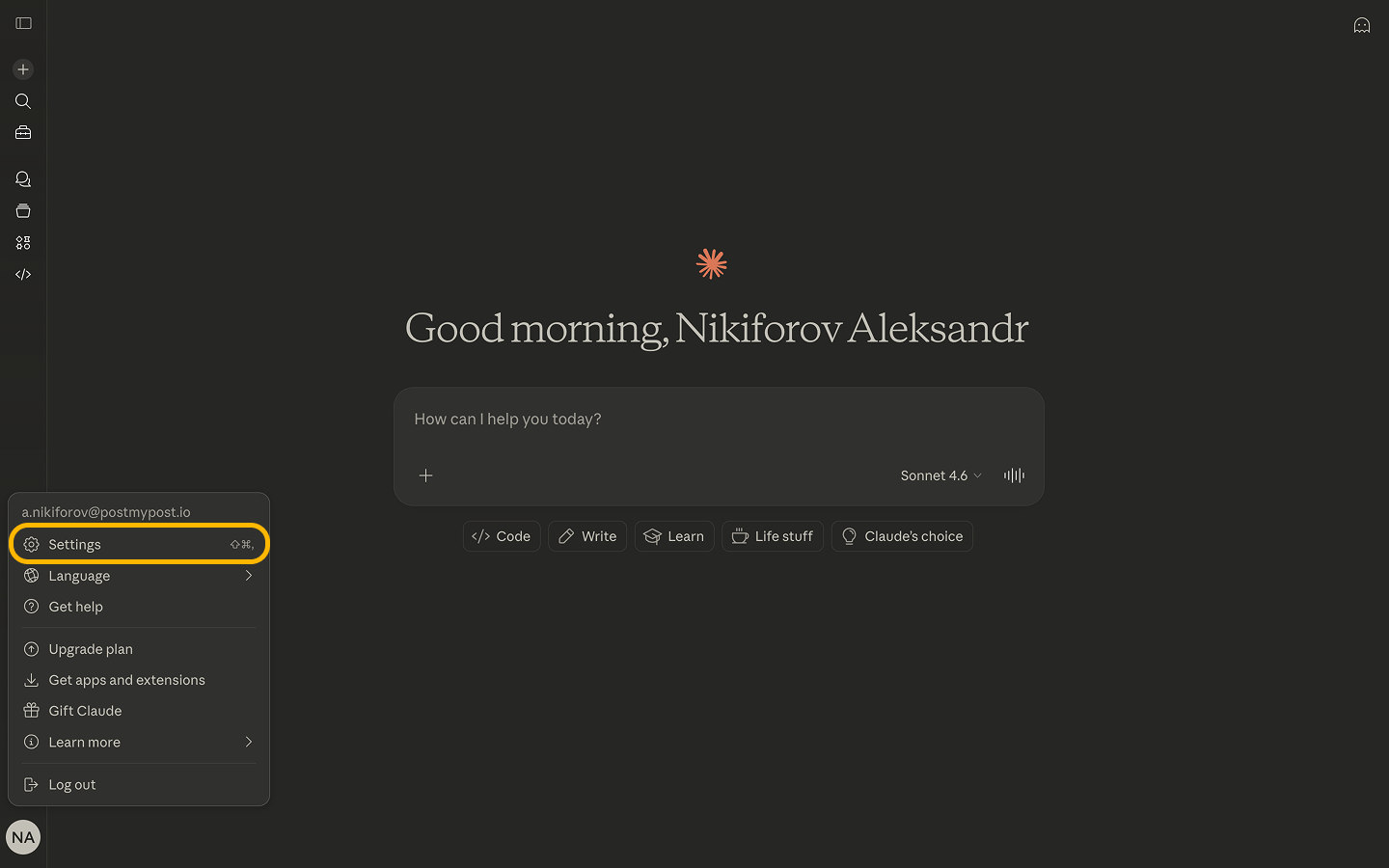
-
Go to the
Connectorssection and clickAdd custom connector.https://claude.ai/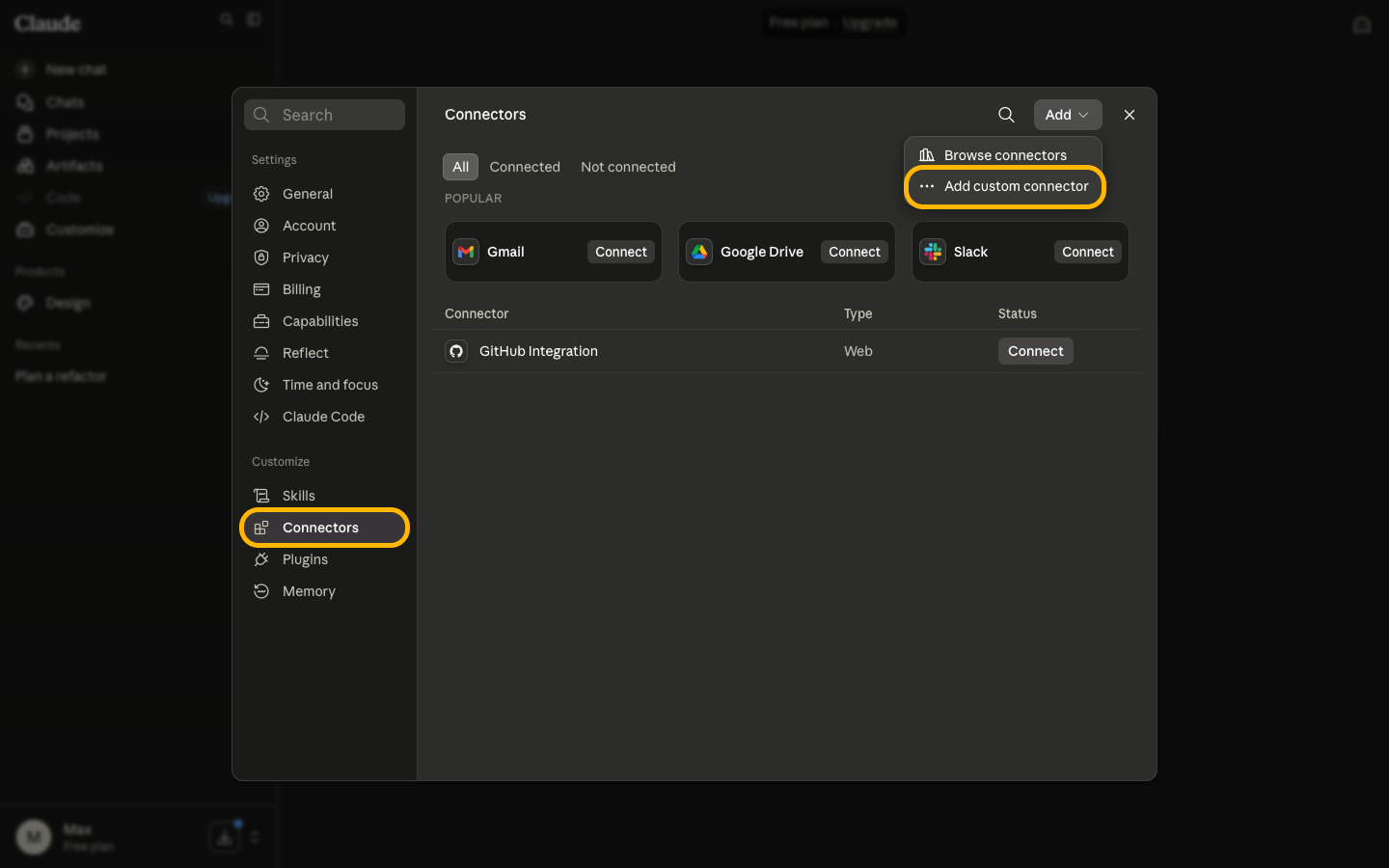
-
Enter a name (for example,
Postmypost) and specify the MCP serverhttps://mcp.postmypost.io/mcp, then clickAdd.https://claude.ai/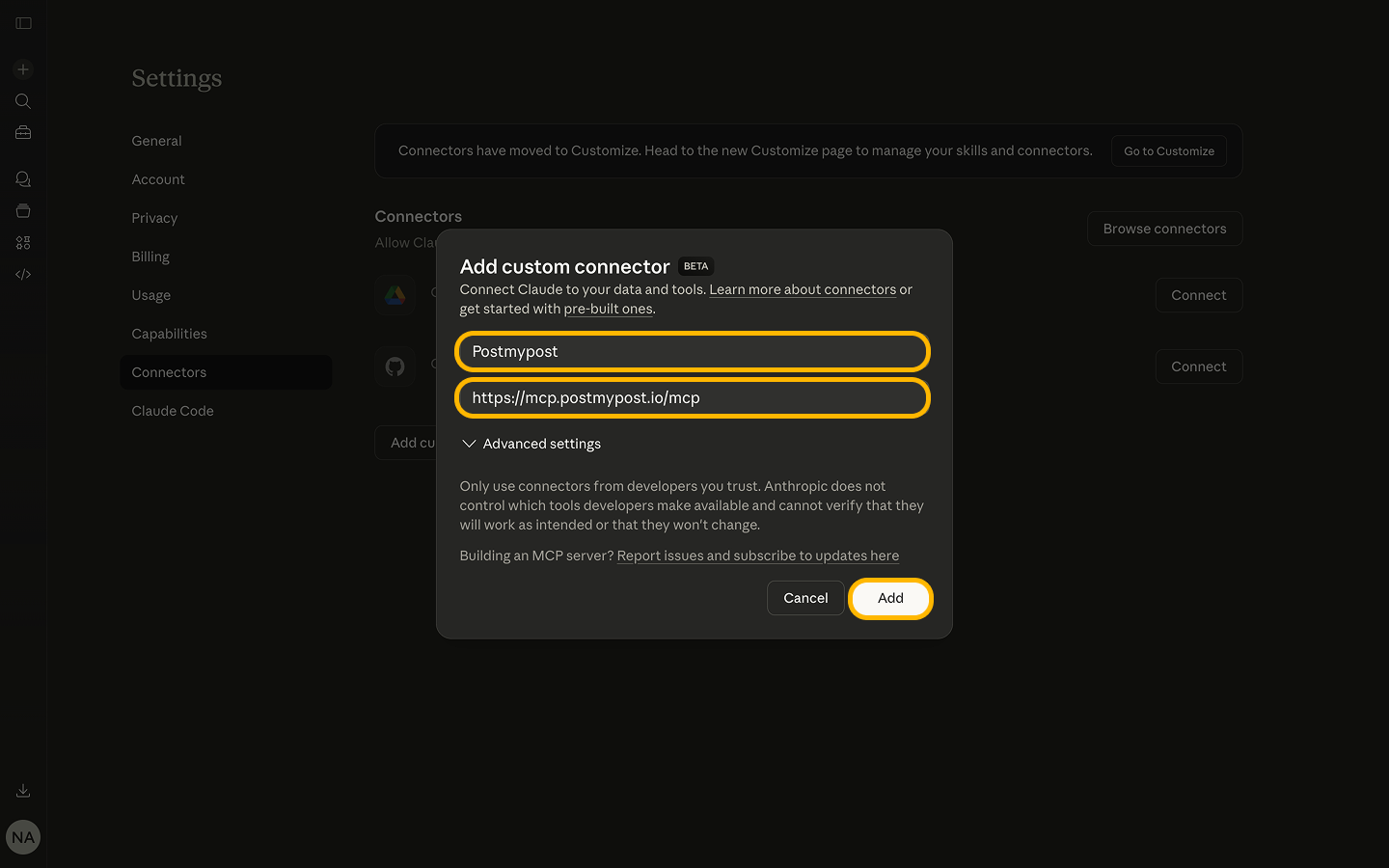
-
In the pop-up window, confirm the connection by clicking
Allow.https://claude.ai/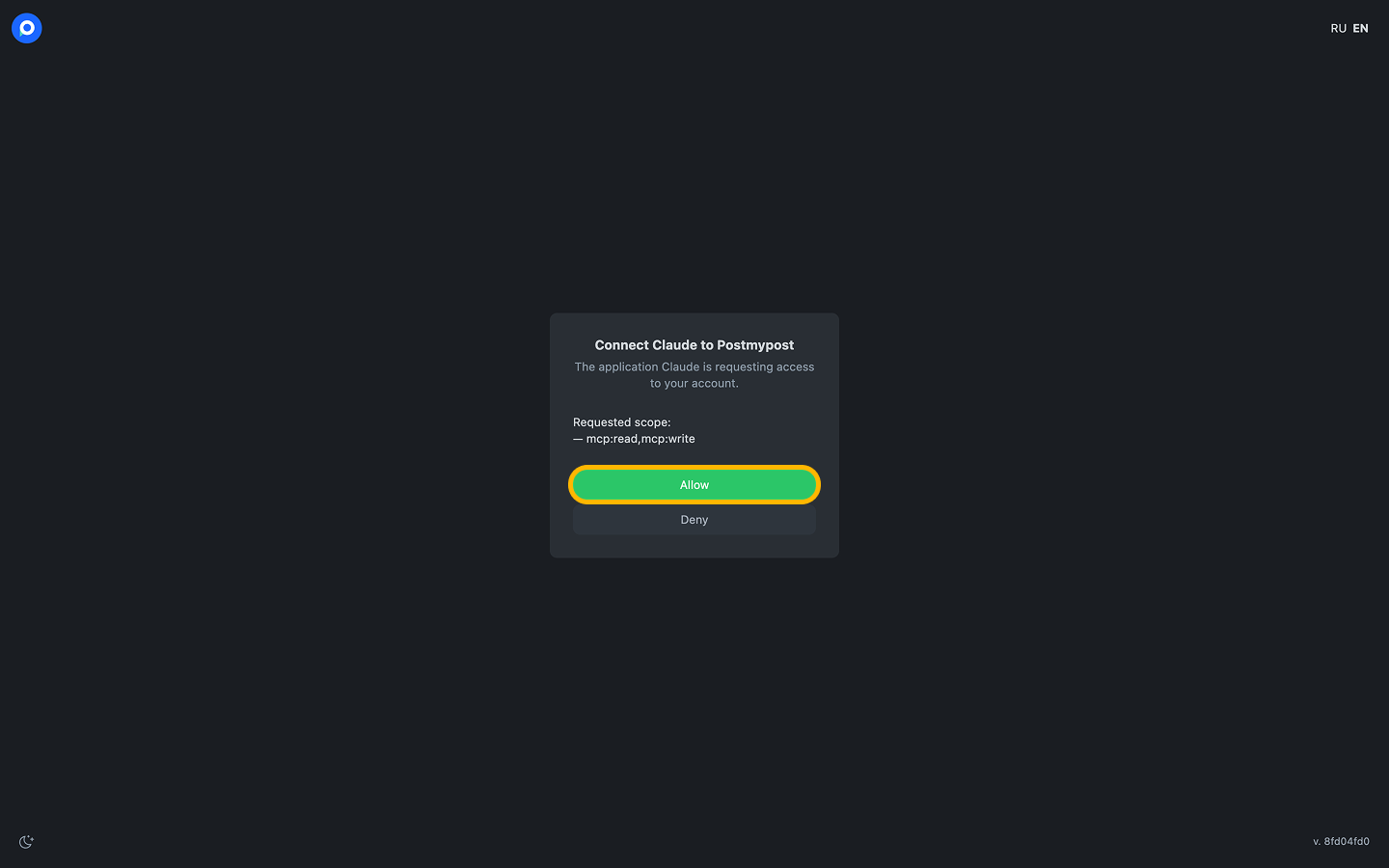
-
After adding, open the connector settings by clicking
Configure.https://claude.ai/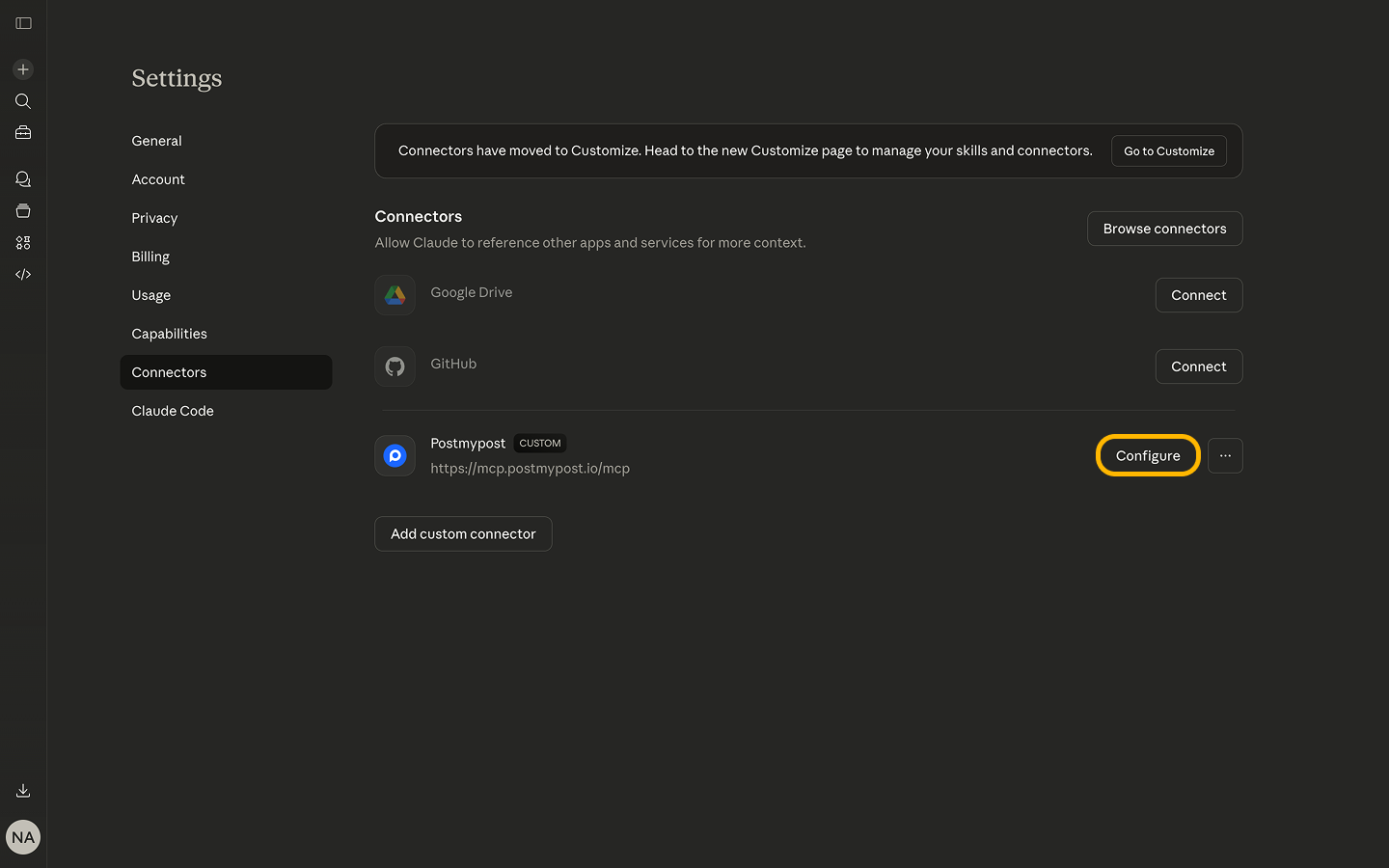
-
Enable access for all available tools.
https://claude.ai/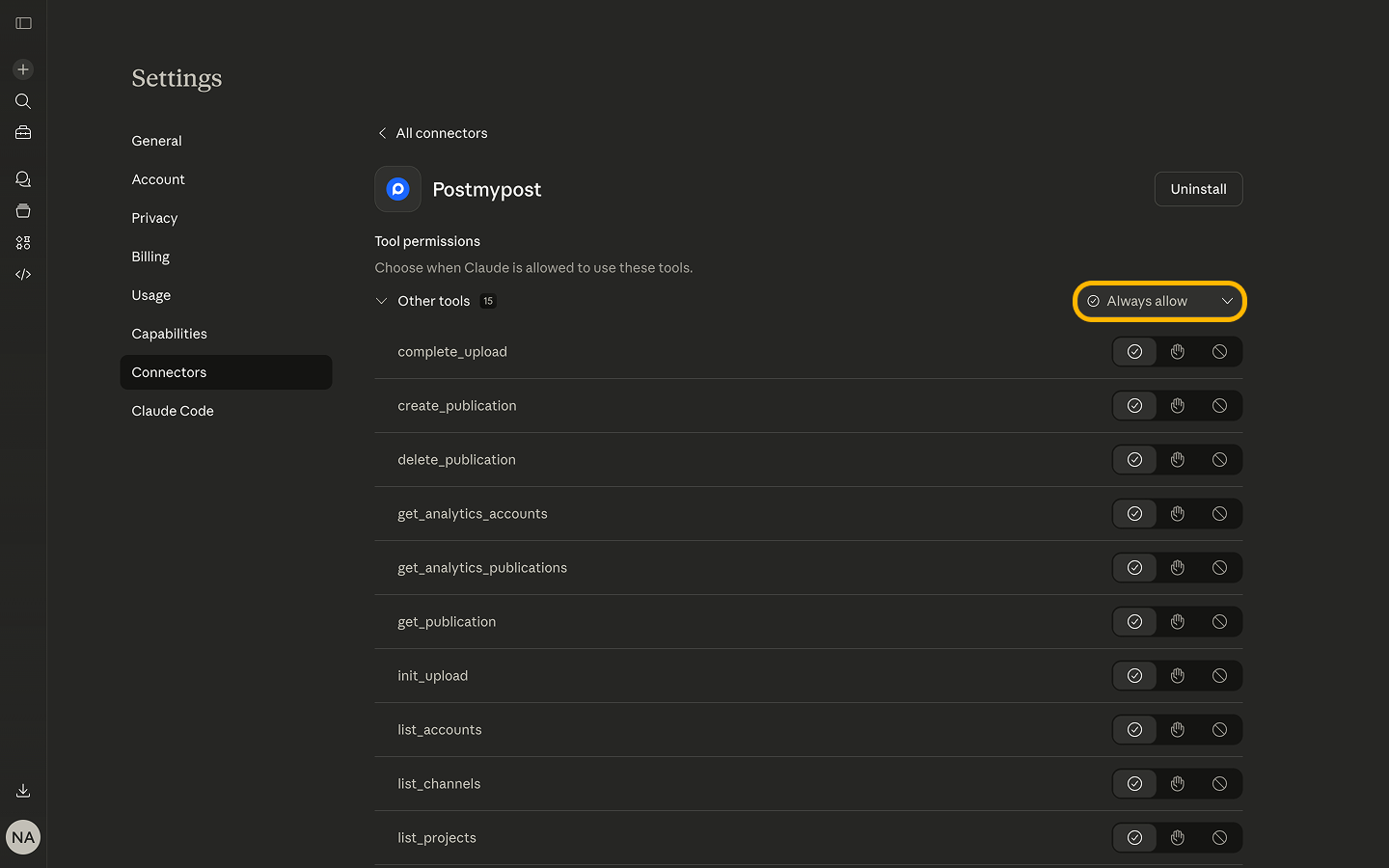
-
Test it by sending a request to the assistant — for example, as shown in the screenshot below.
https://claude.ai/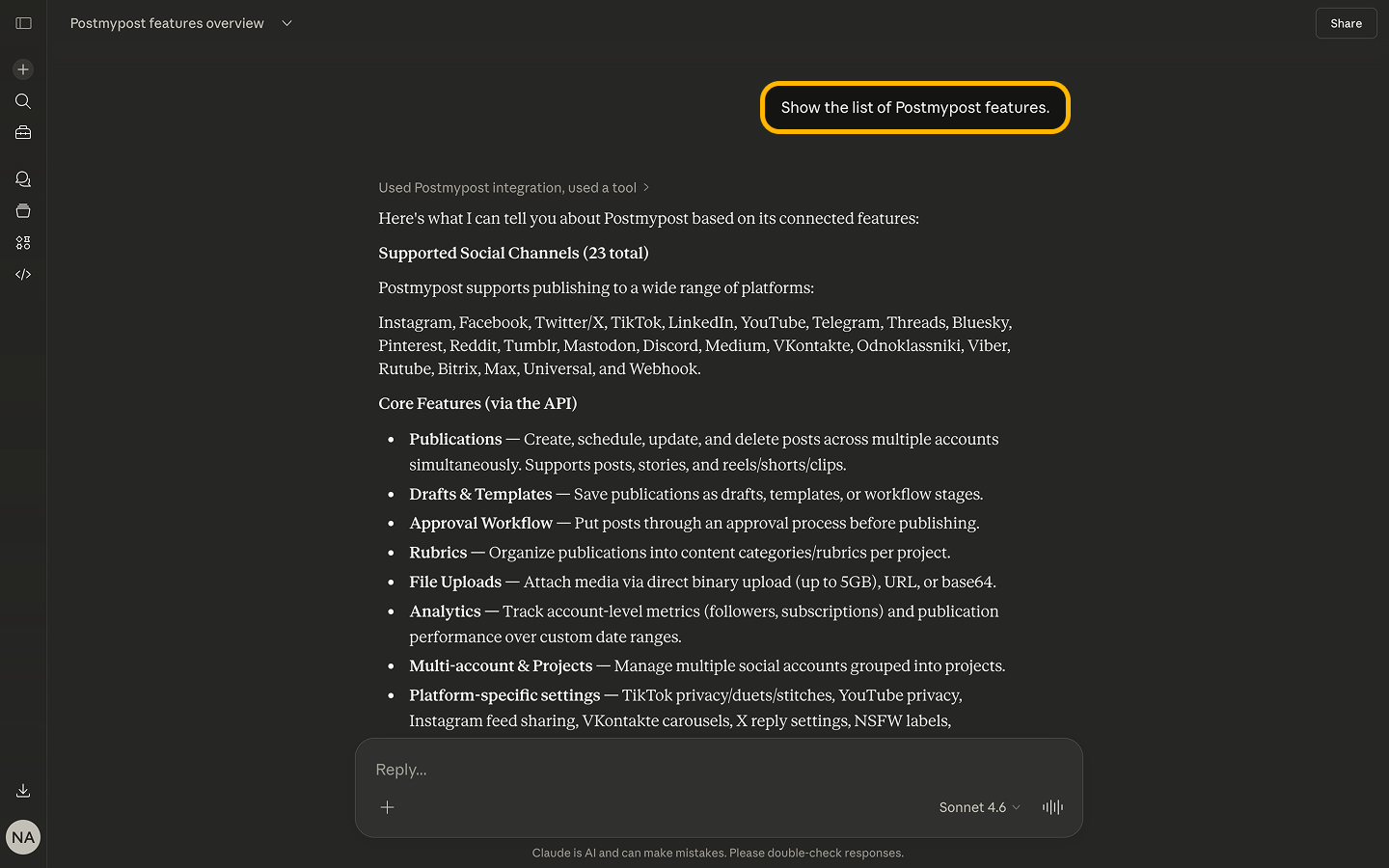
If something isn’t working, remove the connector and repeat the steps. Also make sure the MCP server URL is entered without extra spaces or characters.
Claude Code CLI
Claude Code CLI supports connecting HTTP MCP servers directly via the claude mcp add command.
Connecting Postmypost MCP
Run the command:
claude mcp add --transport http postmypost https://mcp.postmypost.io/mcp \
  --header "Authorization: Bearer $POSTMYPOST_TOKEN"
Verifying the connection
Check that the MCP server is successfully connected:
claude mcp list
You can also view the list of available MCP tools inside Claude Code:
/mcp
Alternative via .mcp.json
Claude Code CLI supports project-level MCP configuration via the .mcp.json file.
Configuration example
{
  "mcpServers": {
    "postmypost": {
      "type": "http",
      "url": "https://mcp.postmypost.io/mcp",
      "headers": {
        "Authorization": "Bearer ${POSTMYPOST_TOKEN}"
      }
    }
  }
}