Connecting Telegram via bot
Connection steps
- Create a bot.
- Add the bot as an administrator in a channel or group.
- Connect Telegram to Postmypost.
How to create a bot?
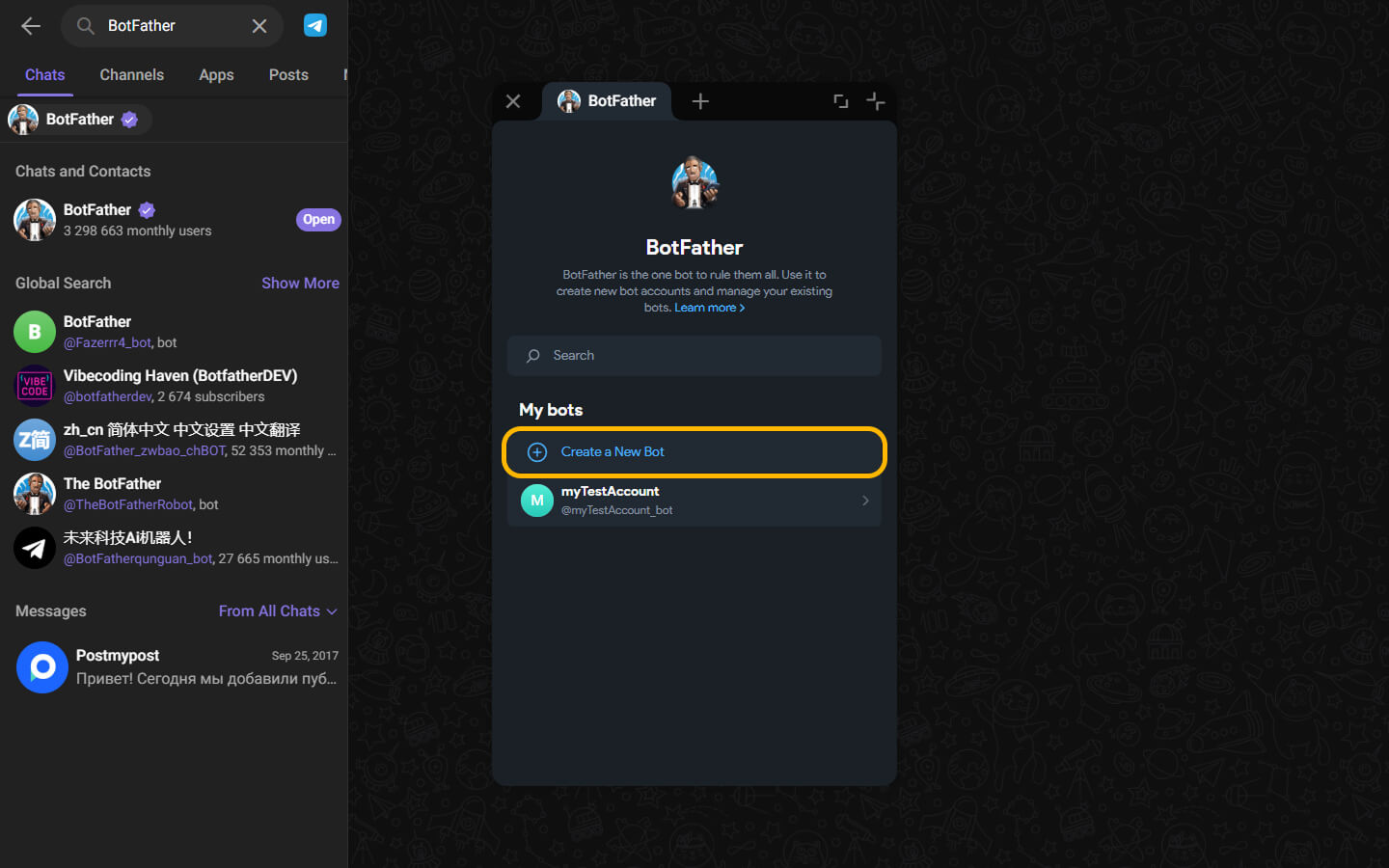
- Type BotFather in the search bar and click Open.
https://web.telegram.org

- Click createBot.
https://web.telegram.org
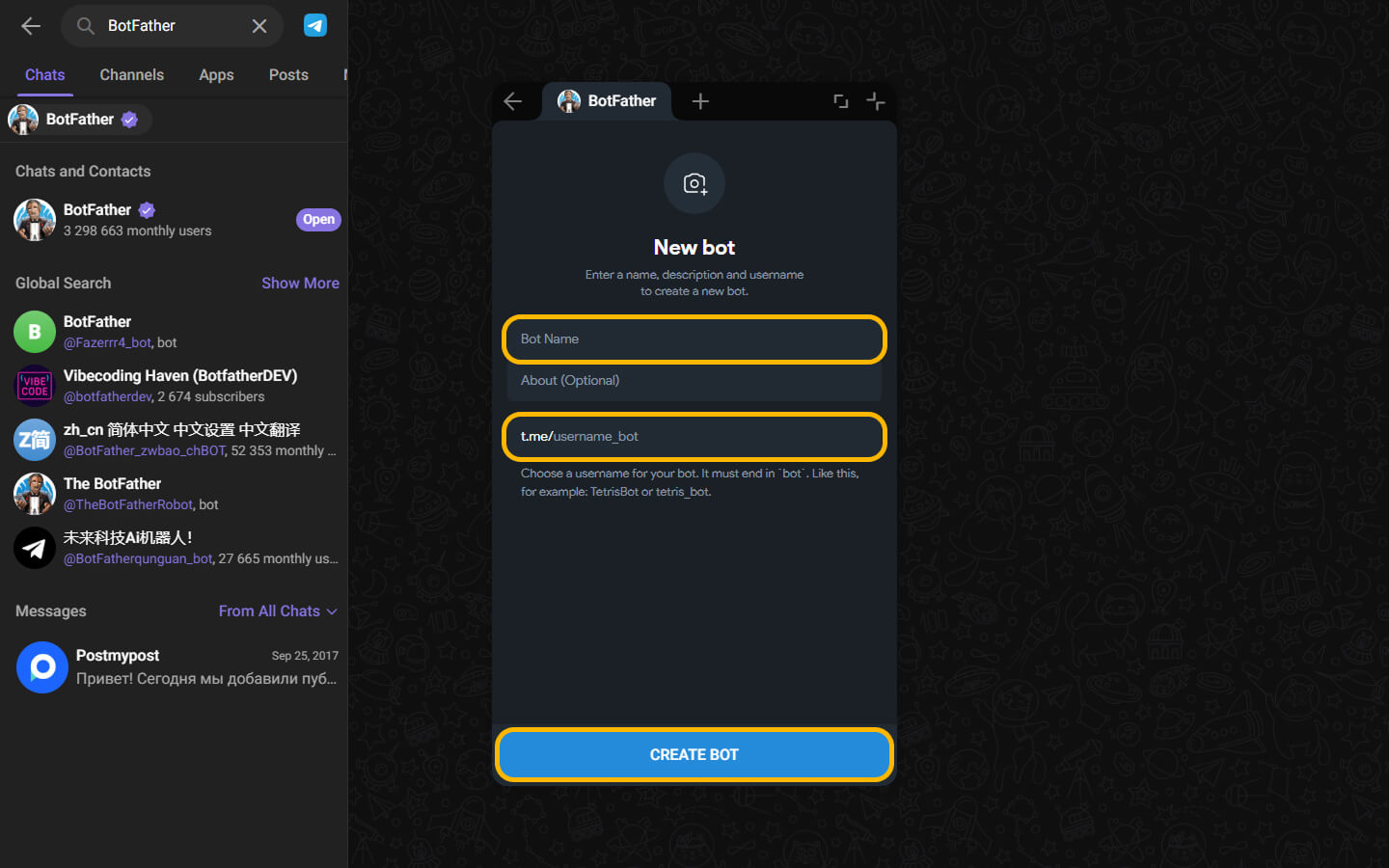
- Next, fill in the required fields:
- Bot Name — this should be a name related to your project, channel, or brand. Come up with it yourself.
- Link — this should be a link to the bot and must end with "_bot". For example: "support_bot" or "mystore_bot". It can also be related to your project.
https://web.telegram.org
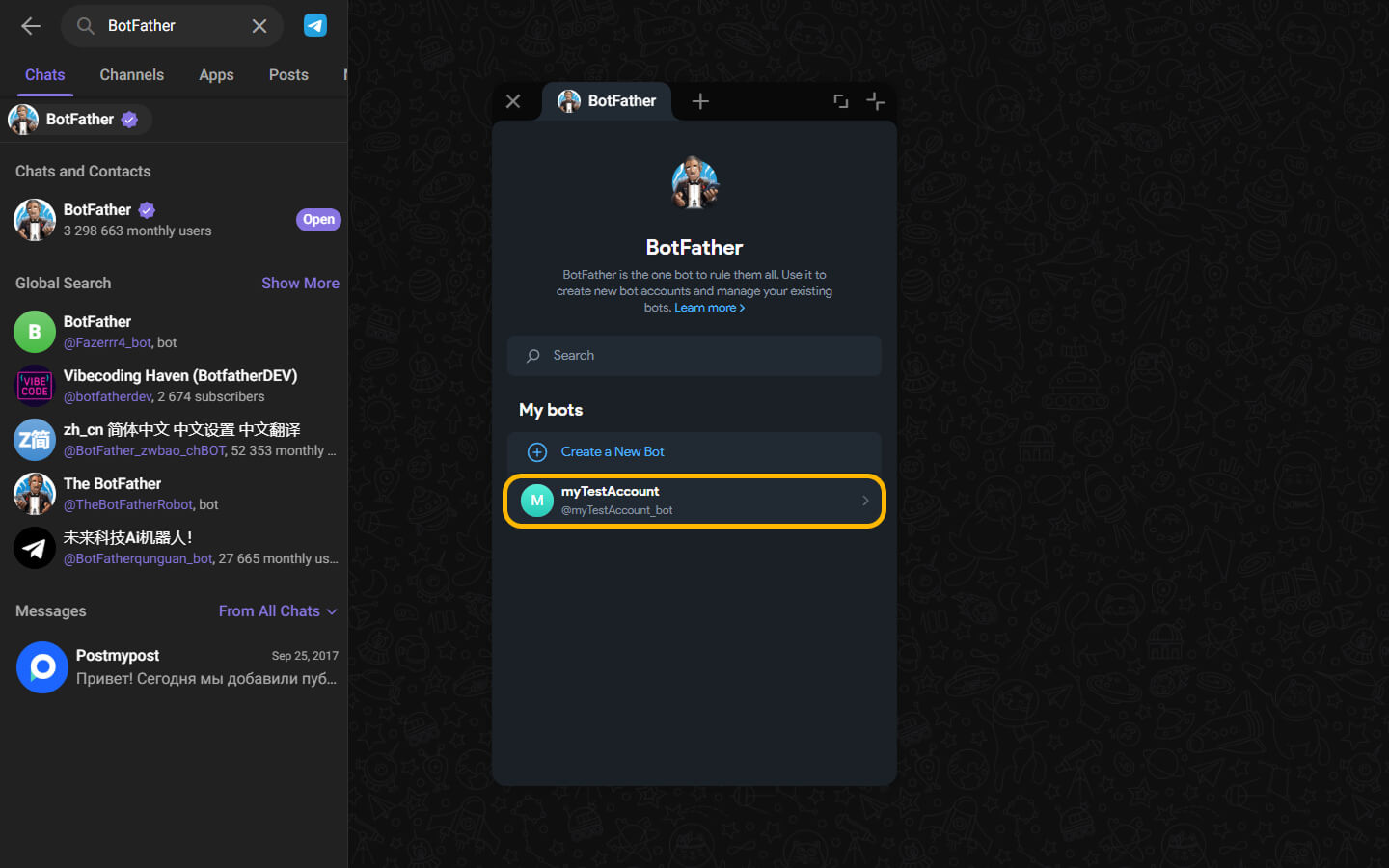
- After that, you can open the previously created bot.
https://web.telegram.org
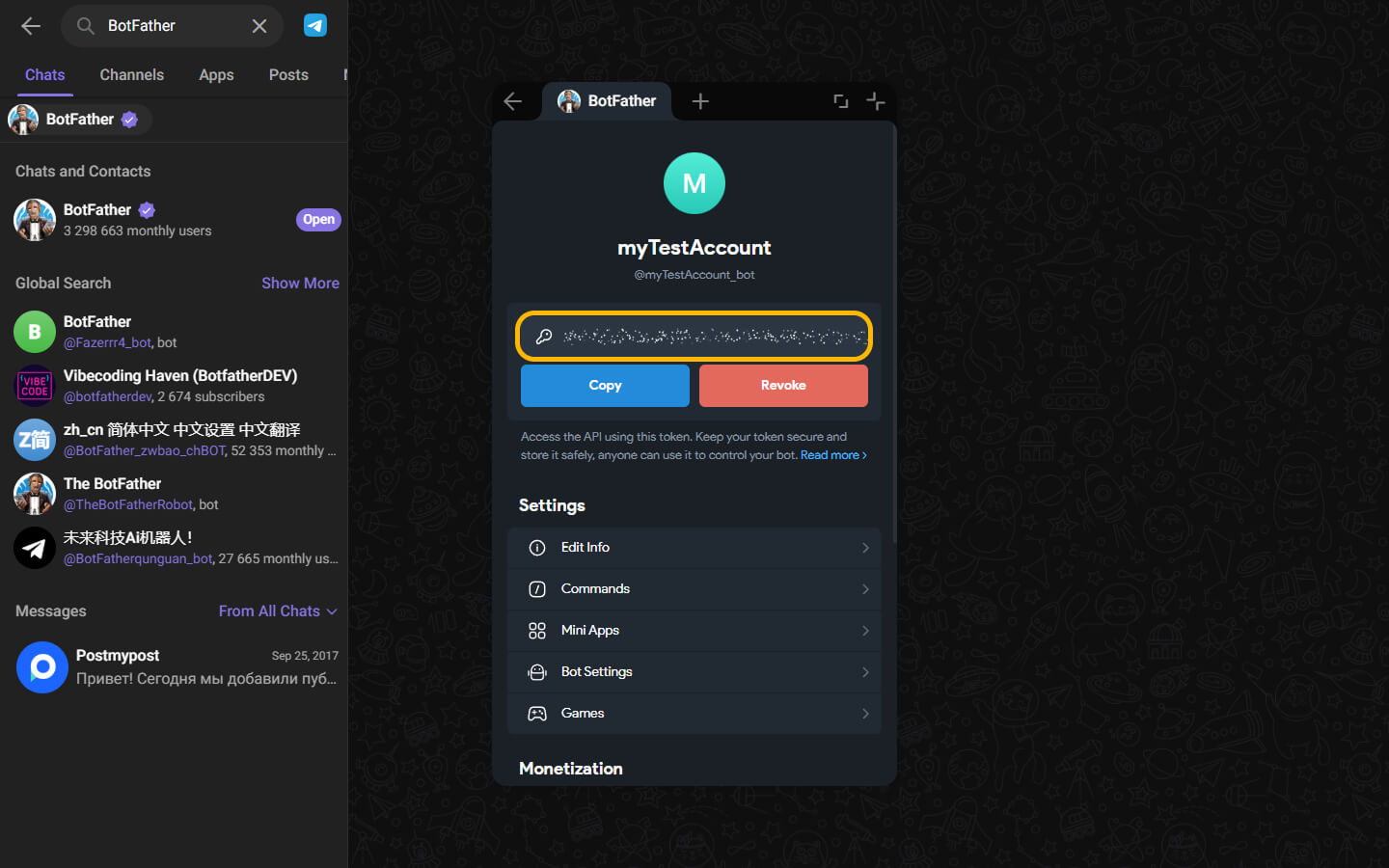
- Copy its token.
https://web.telegram.org
Adding the bot as an administrator in a channel or group
- Go to the information section of your channel/group by clicking on the channel/group name.
- Go to the "Subscribers" section.
- Click on "Add subscribers".
- In the search field that opens, enter the bot's username you gave it during creation, and select it.
- Click the "OK" button.
- After clicking the button, you will receive a notification that the bot can only be added as an administrator. Click the "Make administrator" button.
- Click the "Done" button.
Connecting Telegram to Postmypost
- In Postmypost, go to the Accounts section and click Connect.
- In the opened window with the list of social networks, click Connect next to Telegram.
- Enter the desired channel address, the bot token, and click Connect.
- After a successful connection, you will automatically return to Postmypost, where a list of available channels for connection will open. Check the boxes next to the desired ones and click Connect.
- Congratulations! Telegram is connected.
Connecting to topics in Telegram groups
In Postmypost, you can connect a specific topic in a Telegram group. When selecting accounts, such a topic will be shown with a slash, for example: Group Name / Topic Name. When connecting a specific topic, publishing will occur only in that topic, not in the entire group.
If you do not see the required topic in the list of available ones, write any message in that topic and reconnect the account. After that, the topic will become available for connection.