Connecting Telegram via the app
Connect your account via the Telegram app by scanning a QR code. This method supports all Telegram features, including Telegram Premium.
Step-by-step guide
- Create a public channel or group in Telegram.
- Copy the link to this channel/group in the format:
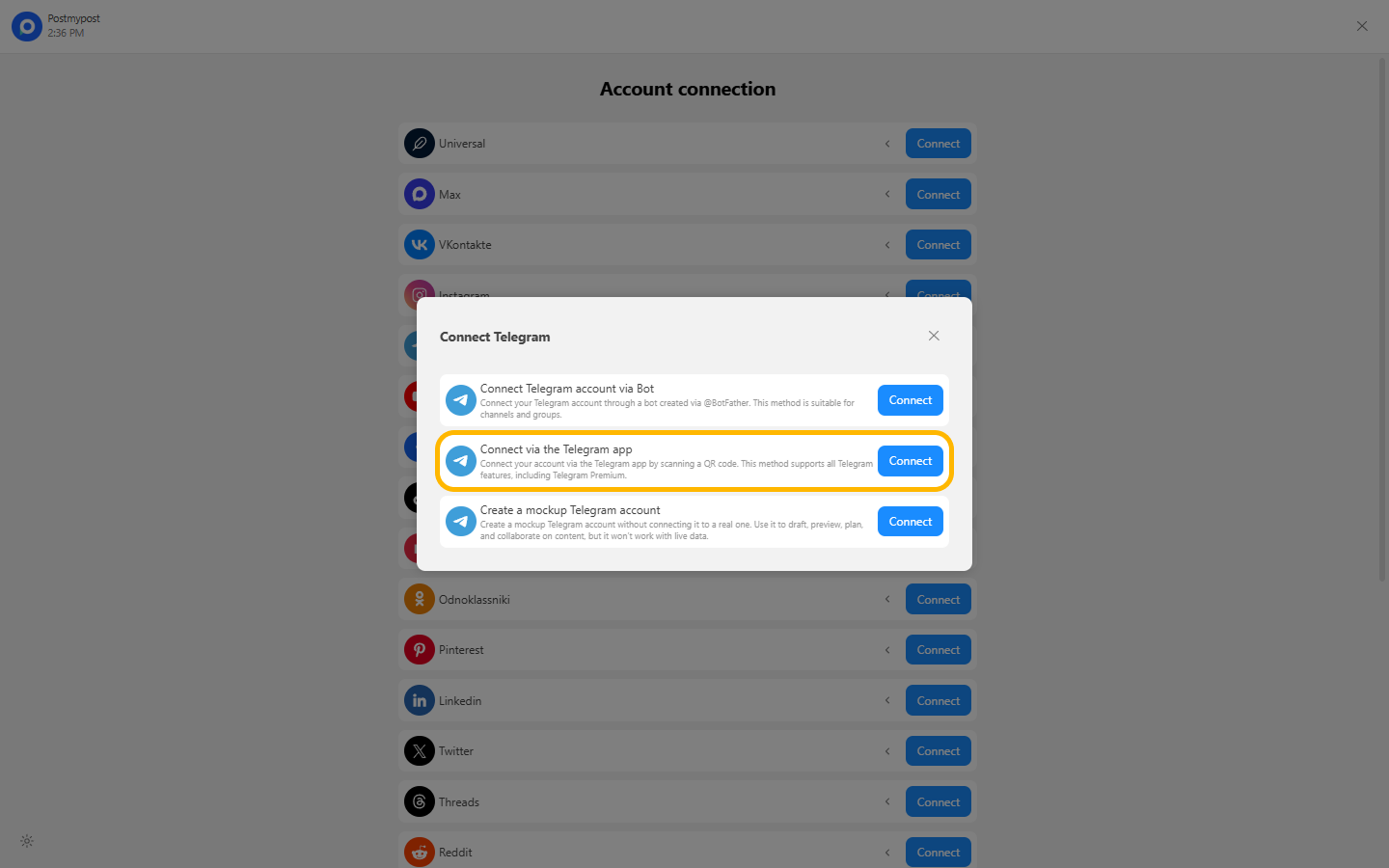
https://t.me/channelname. If you want to connect a personal account, you also need to provide a link to any of your channels or groups. - In Postmypost, go to the Accounts section and click Connect. In the list of social networks, select Telegram and the connection type "Connect via Telegram app."
https://web.telegram.org
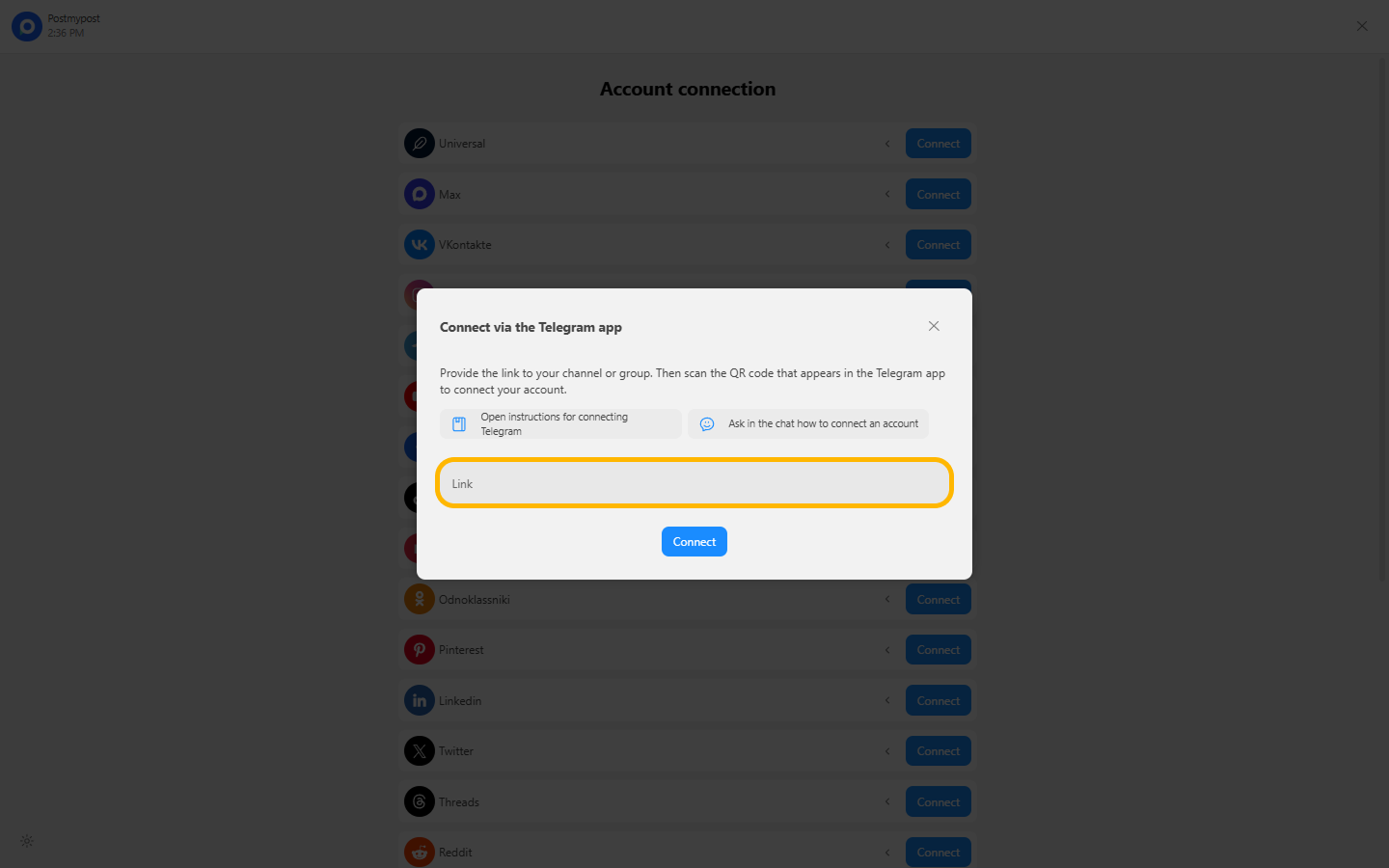
- Paste the copied link to the channel/group and continue the connection.
https://web.telegram.org
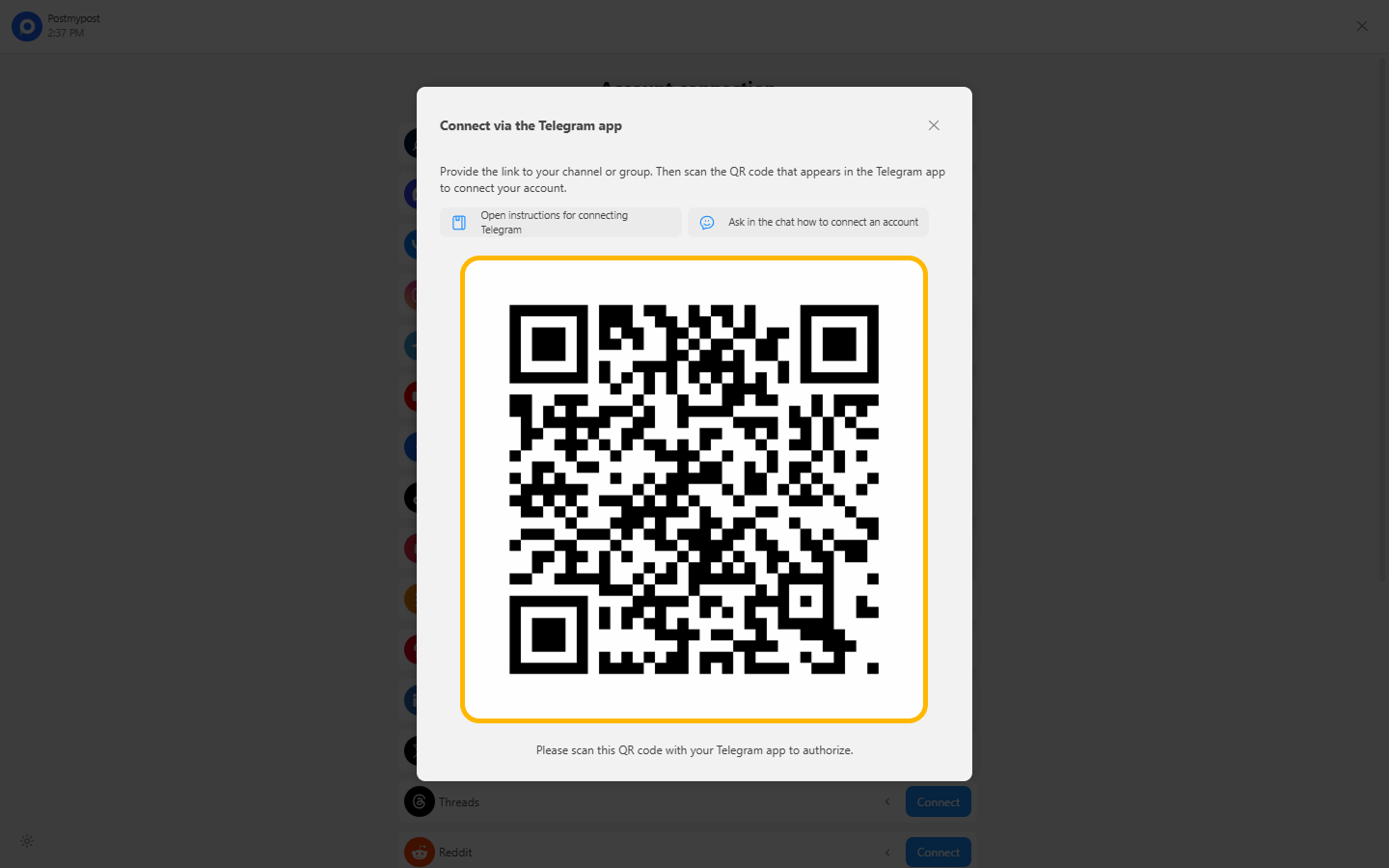
- Get a QR code. It is best to use another device for the connection — for example, open Postmypost on a computer and use the Telegram app on your phone. In the Telegram app, open Settings → Devices → Link Device and scan the QR code directly from the Postmypost screen. Do not use a QR-code screenshot, especially one forwarded from another source: the code may have already expired, and Telegram will show an error. After scanning, wait 15–30 seconds until the next step appears. If the QR code is not scanned, check if VPN is enabled (if it is required for Telegram to work).
https://web.telegram.org
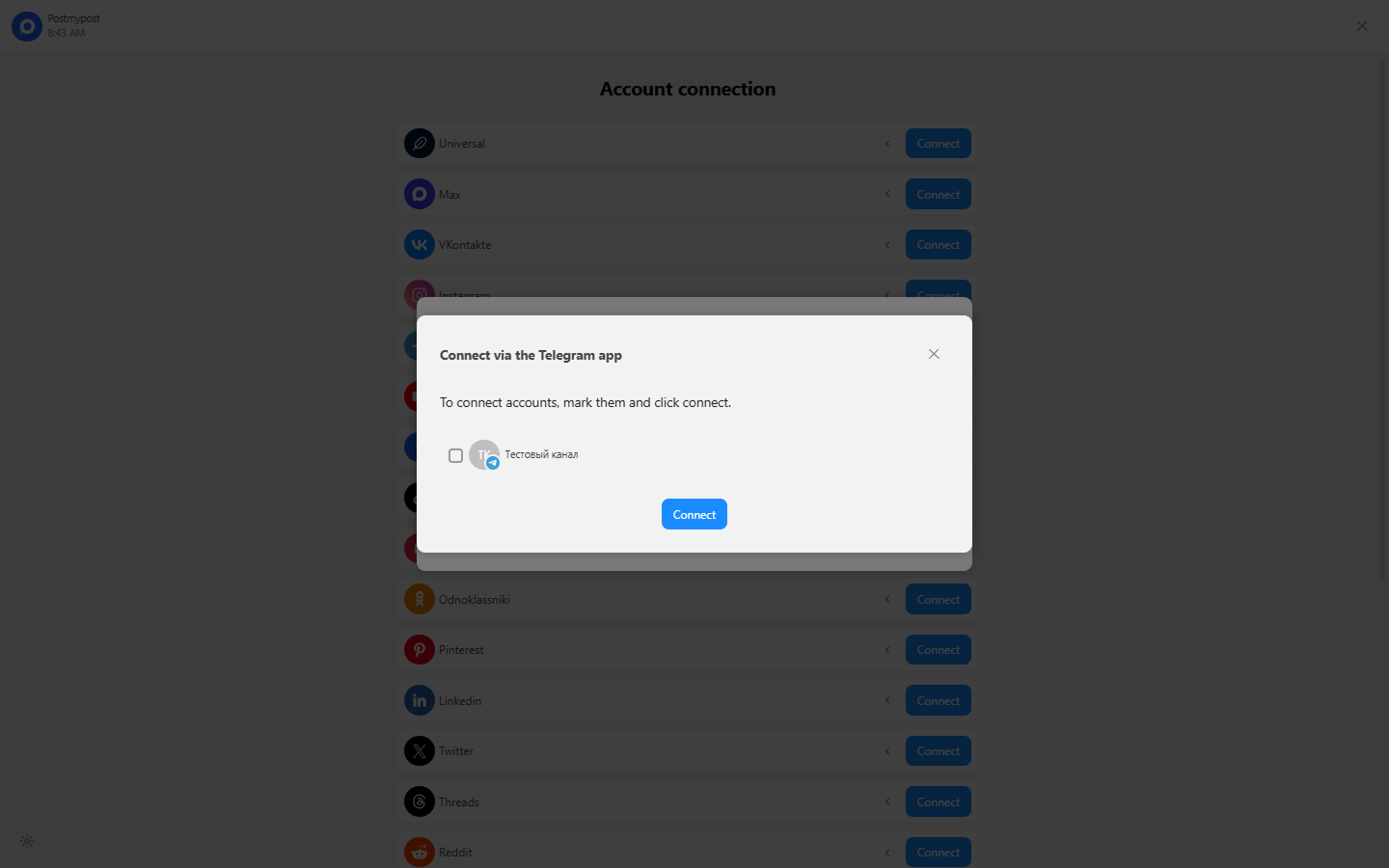
- Select the channel, group, or personal account to connect.
https://web.telegram.org
Important about the integration
This is an official integration through the Telegram API as a client application. The authorization is created in your real account and will be visible in Telegram under "Devices" as a separate device (Postmypost Linux).
- It is a "virtual device" that operates on behalf of your account for publishing and other actions supported by Telegram, including Telegram Premium.
- The access point/location for this device is fixed: Falkenstein, Germany. It is single and constant — you will always see the same geolocation for this device.
If needed, you can log out this device in Telegram at any time (Settings → Devices), just like any other connected device.