Getting started
This section gives a brief overview and a step-by-step guide to start using Postmypost — from signing in to publishing your first post.
Desktop version
Sign in or sign up
If you already have an account:
- Go to the sign-in page: https://app.postmypost.io/login
- Enter your email and password, then click "Sign in."
https://app.postmypost.io/login
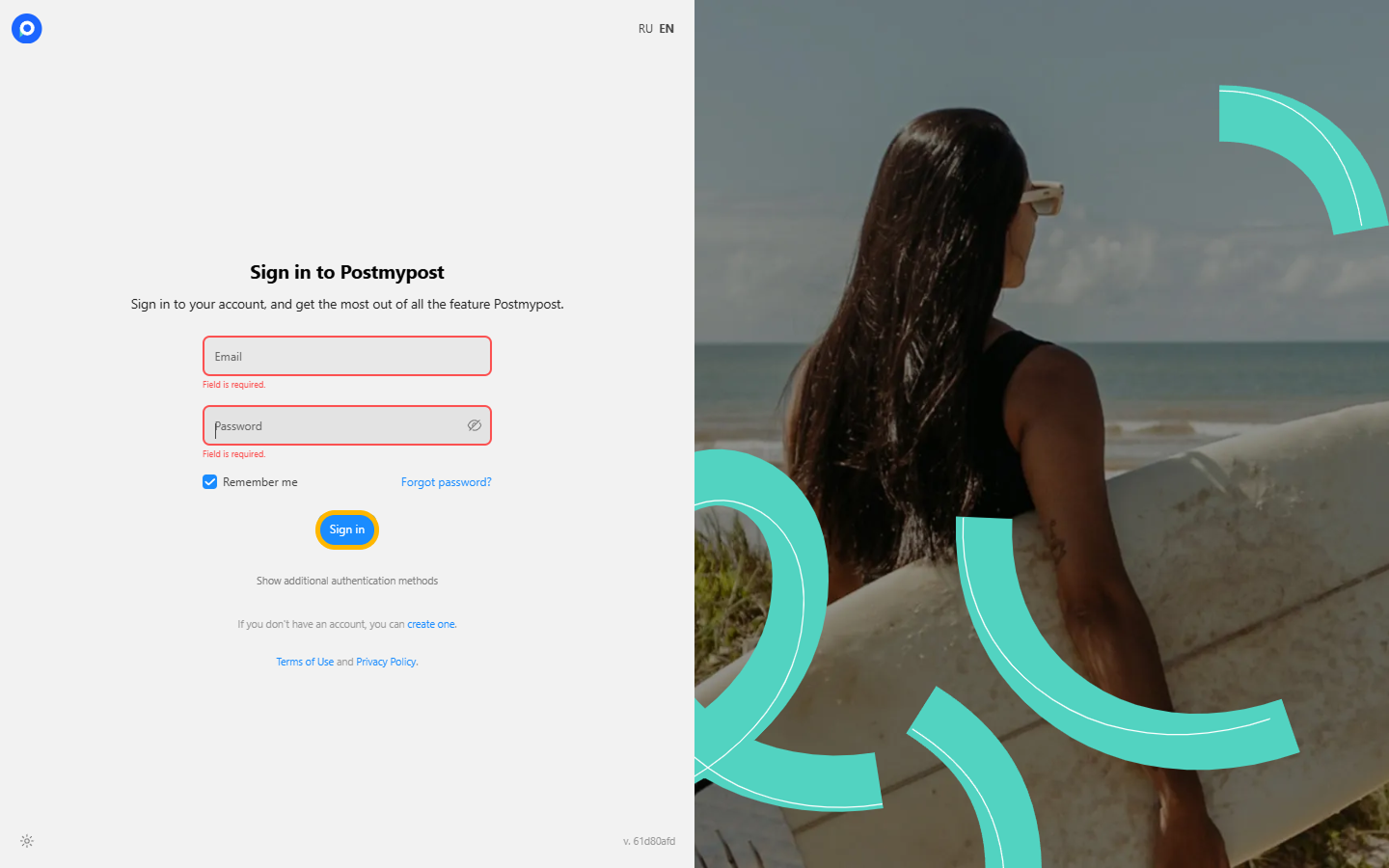
If you don't have an account yet:
- Go to the sign-up page: https://app.postmypost.io/signup
- Enter your email, create a password, and complete the registration following the on-screen instructions.
https://app.postmypost.io/signup
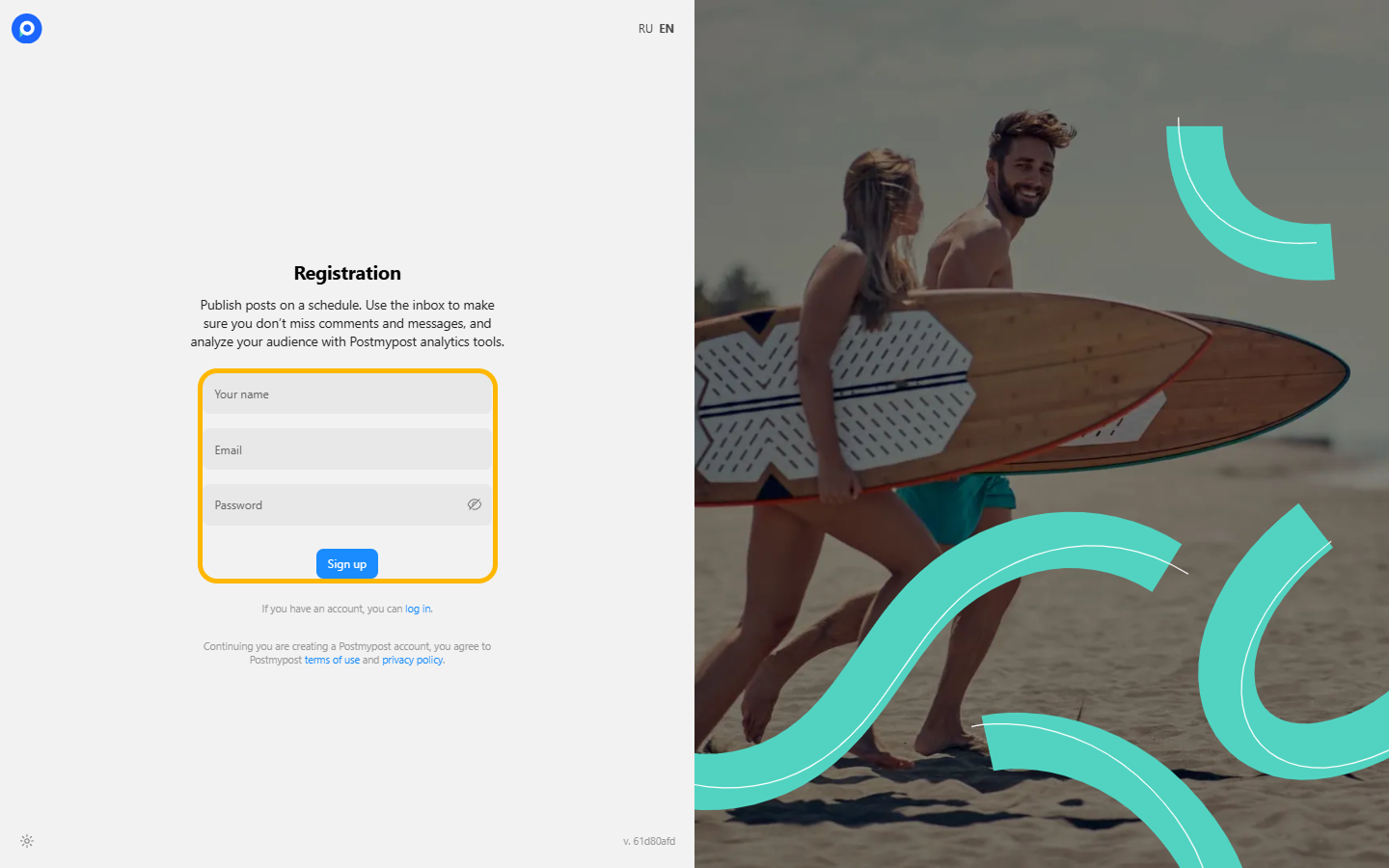
Tip: after registration, you’ll get a trial period. Learn more in the Trial period section.
Choose a project and connect an account
Postmypost works with projects — a convenient way to separate brands, clients, or directions.
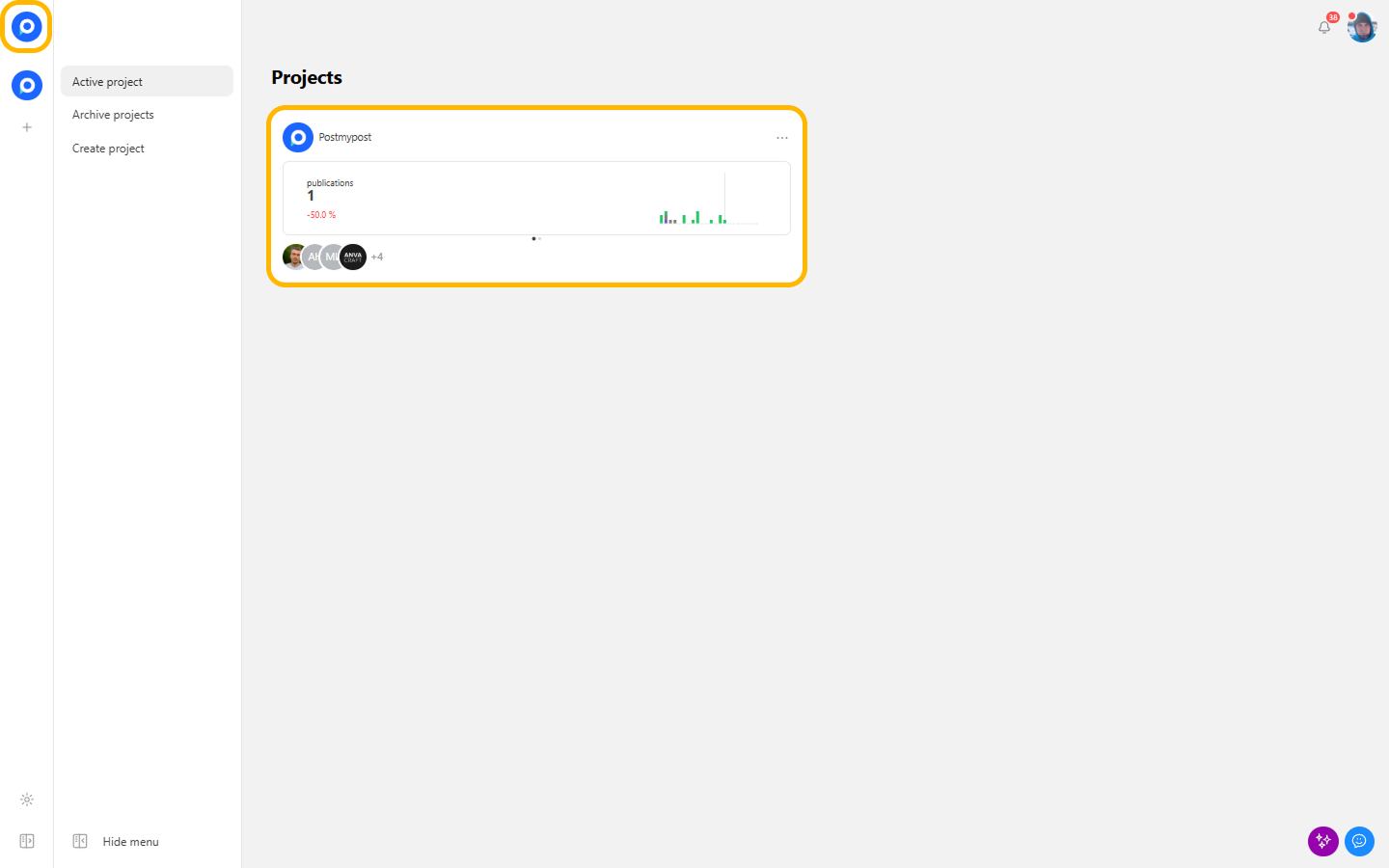
- In the top-left corner, click the logo to open the project list.
- Select an existing project or create a new one.
https://app.postmypost.io/project
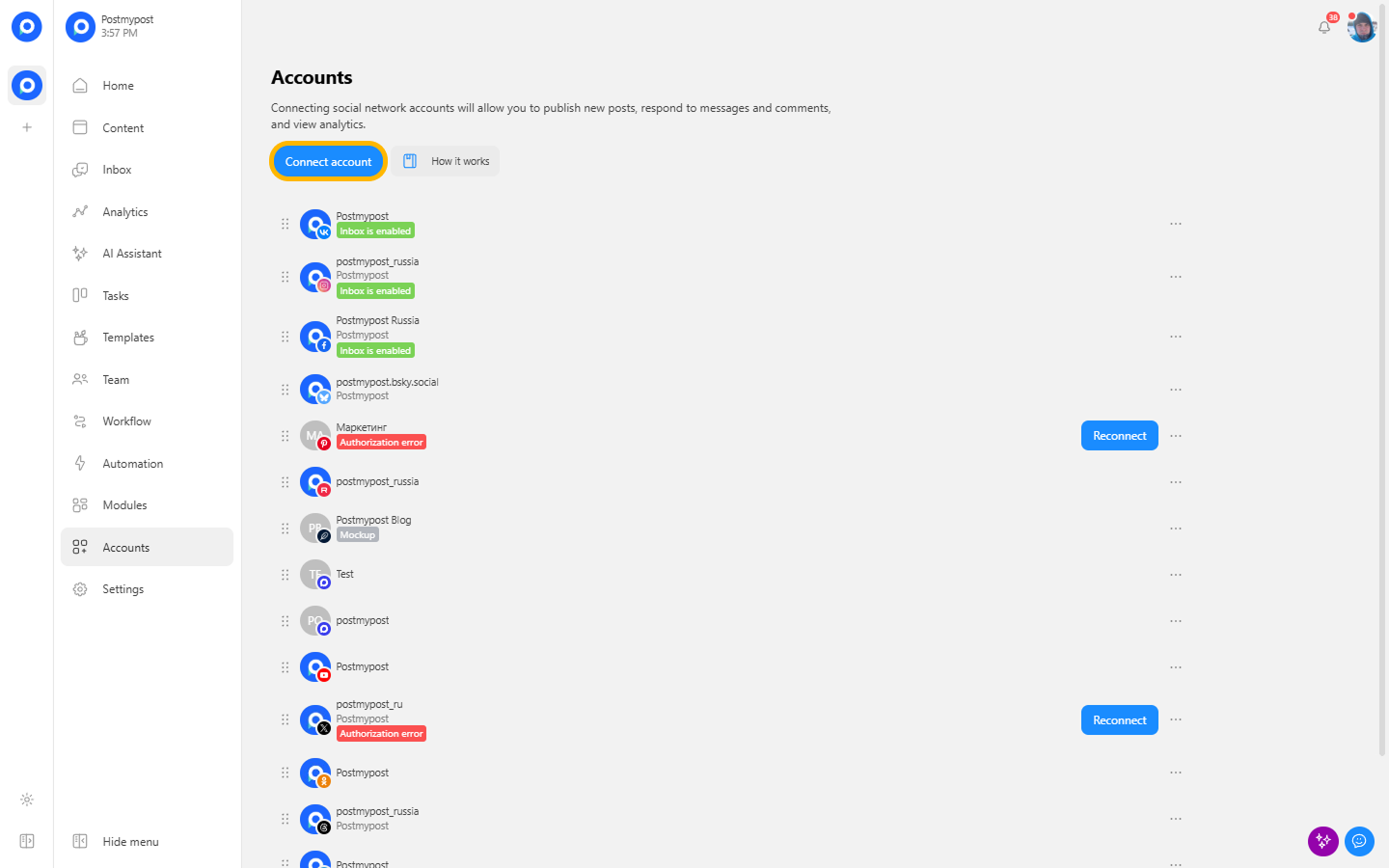
- Go to the "Accounts" section of the selected project.
https://app.postmypost.io/project
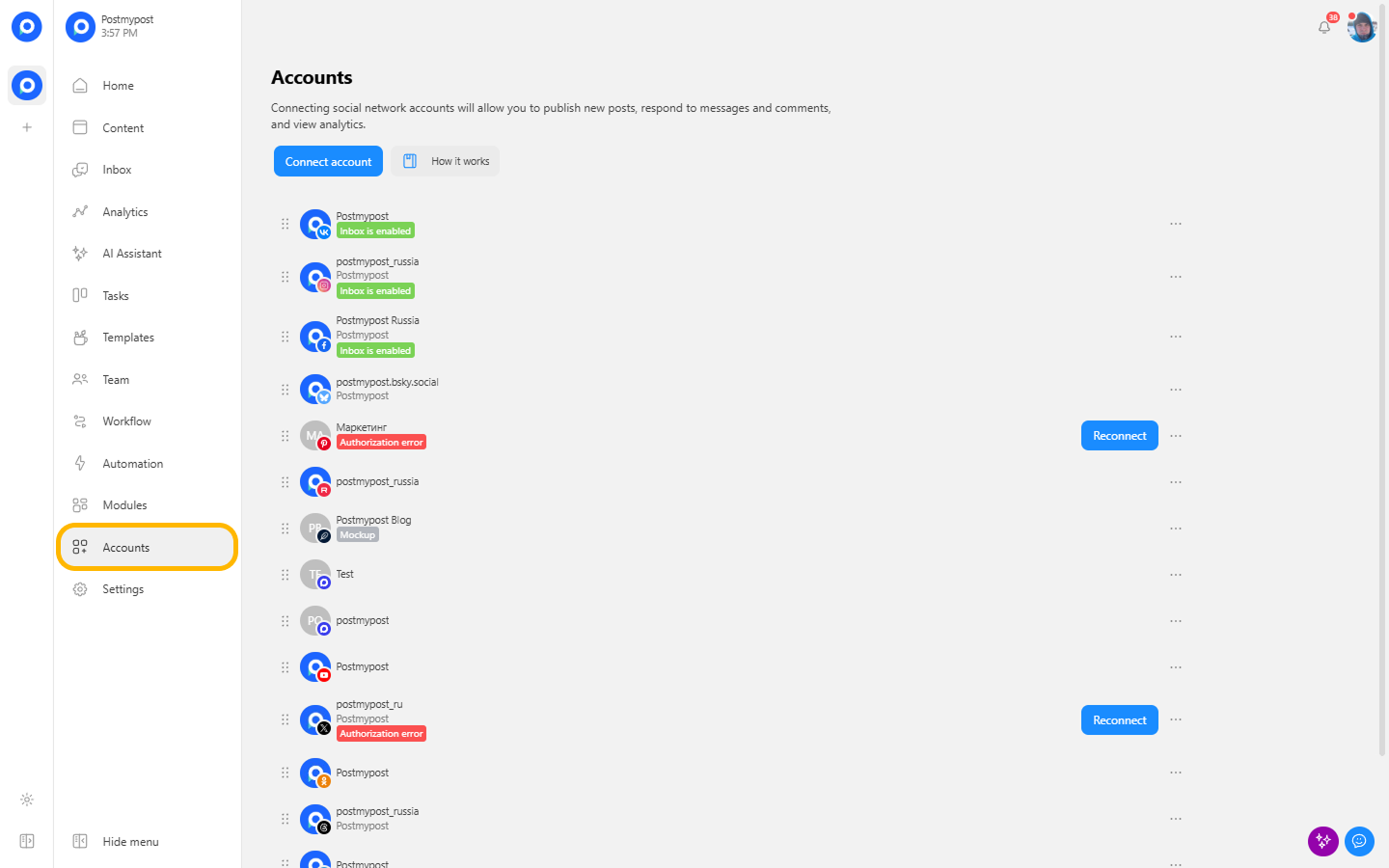
- Click "Connect account".
https://app.postmypost.io/project
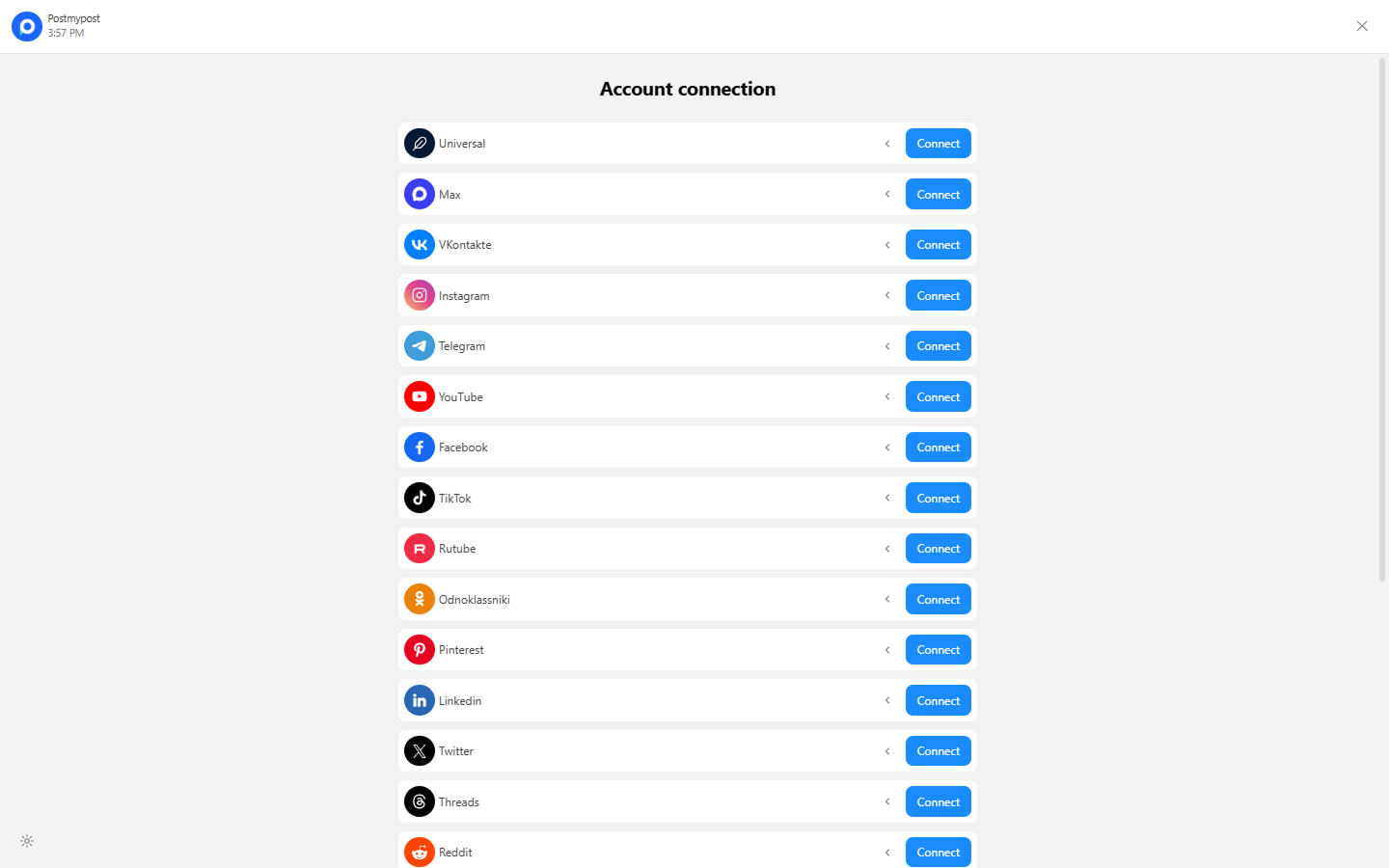
- Choose the social network you need and open the connection guide.
https://app.postmypost.io/project
 https://app.postmypost.io/project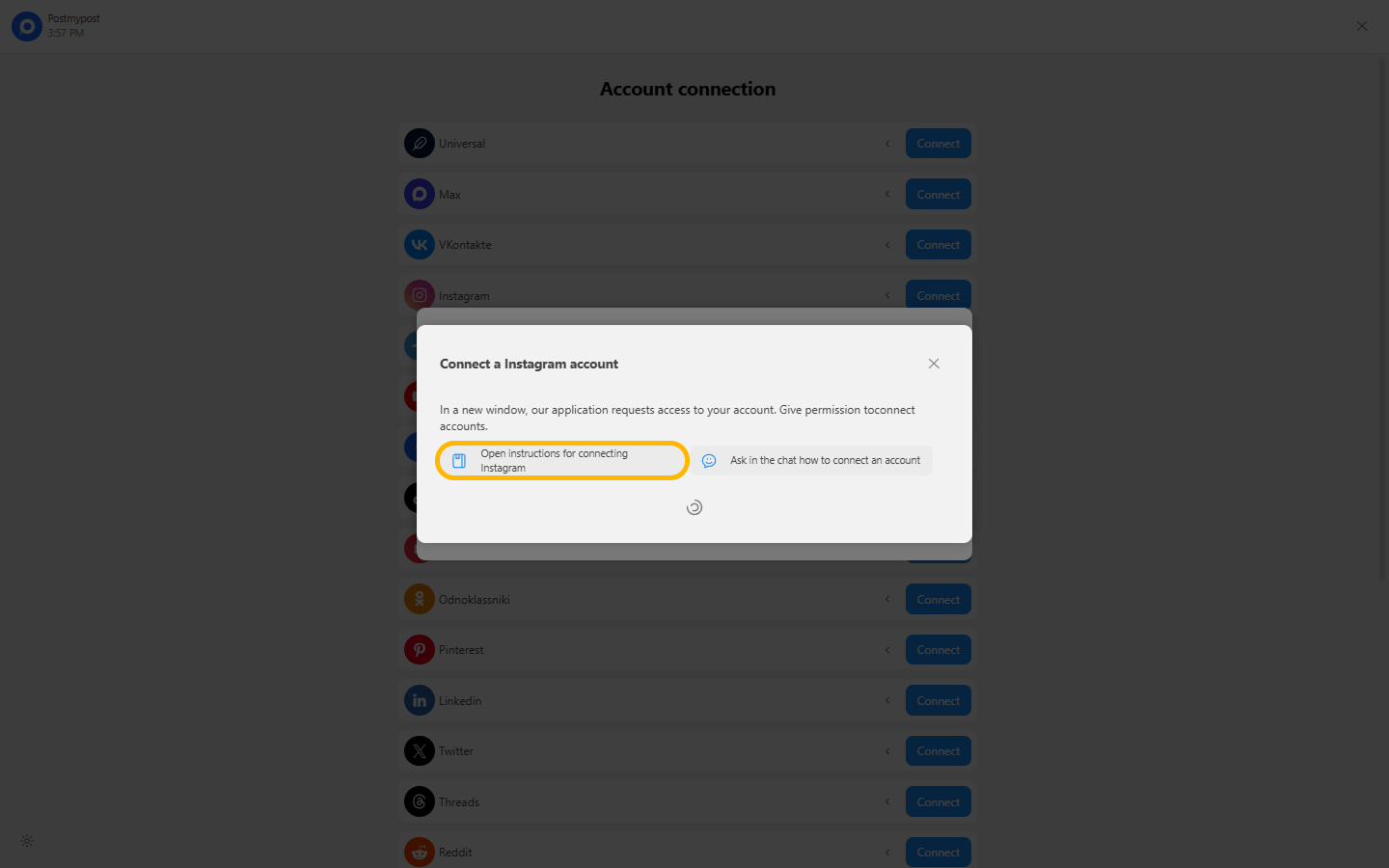
- Follow the steps in the guide to connect the account to the selected project.
Create and publish a post
Once at least one account is connected, you can create posts.
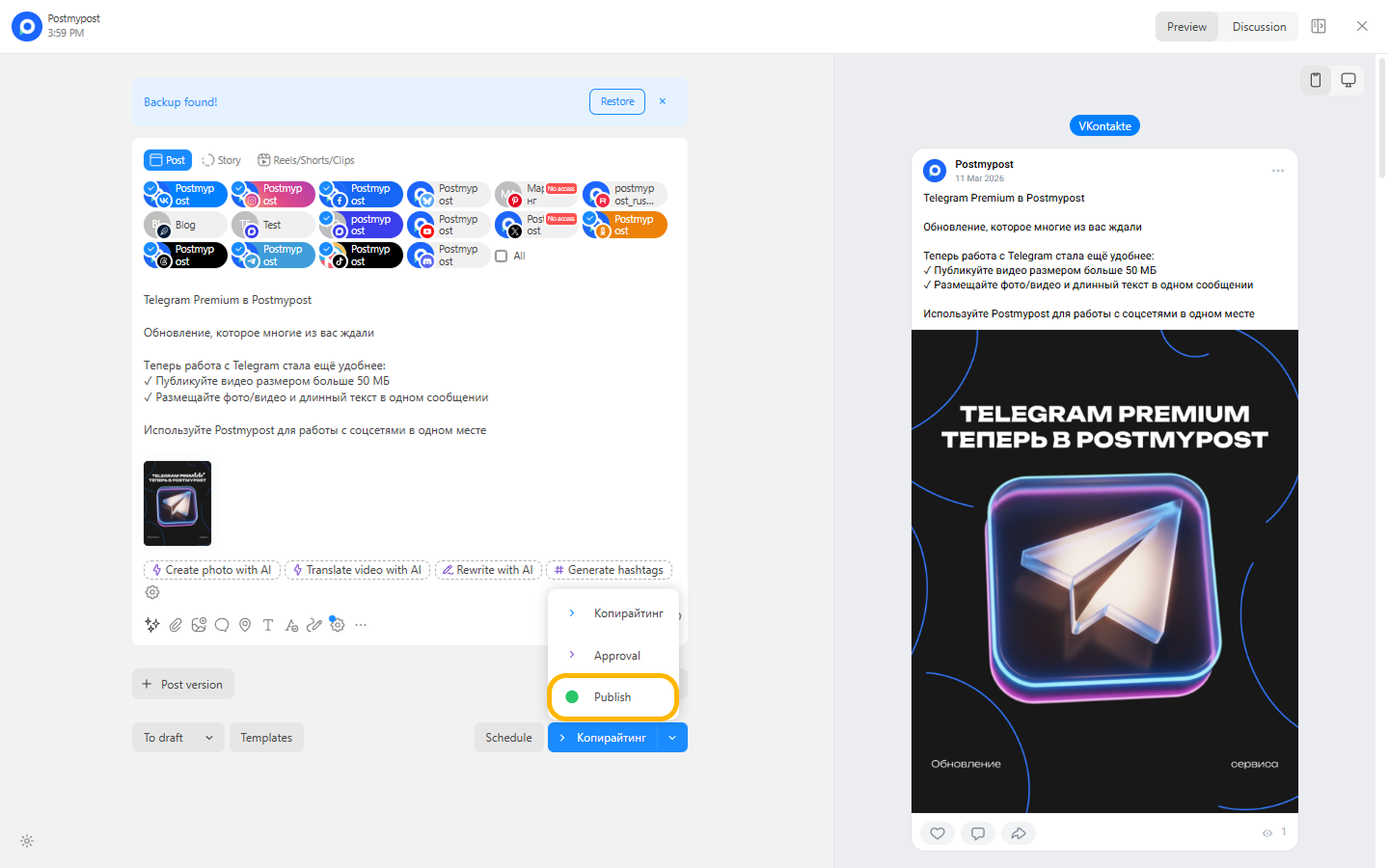
- Open the "Content" section.
https://app.postmypost.io/
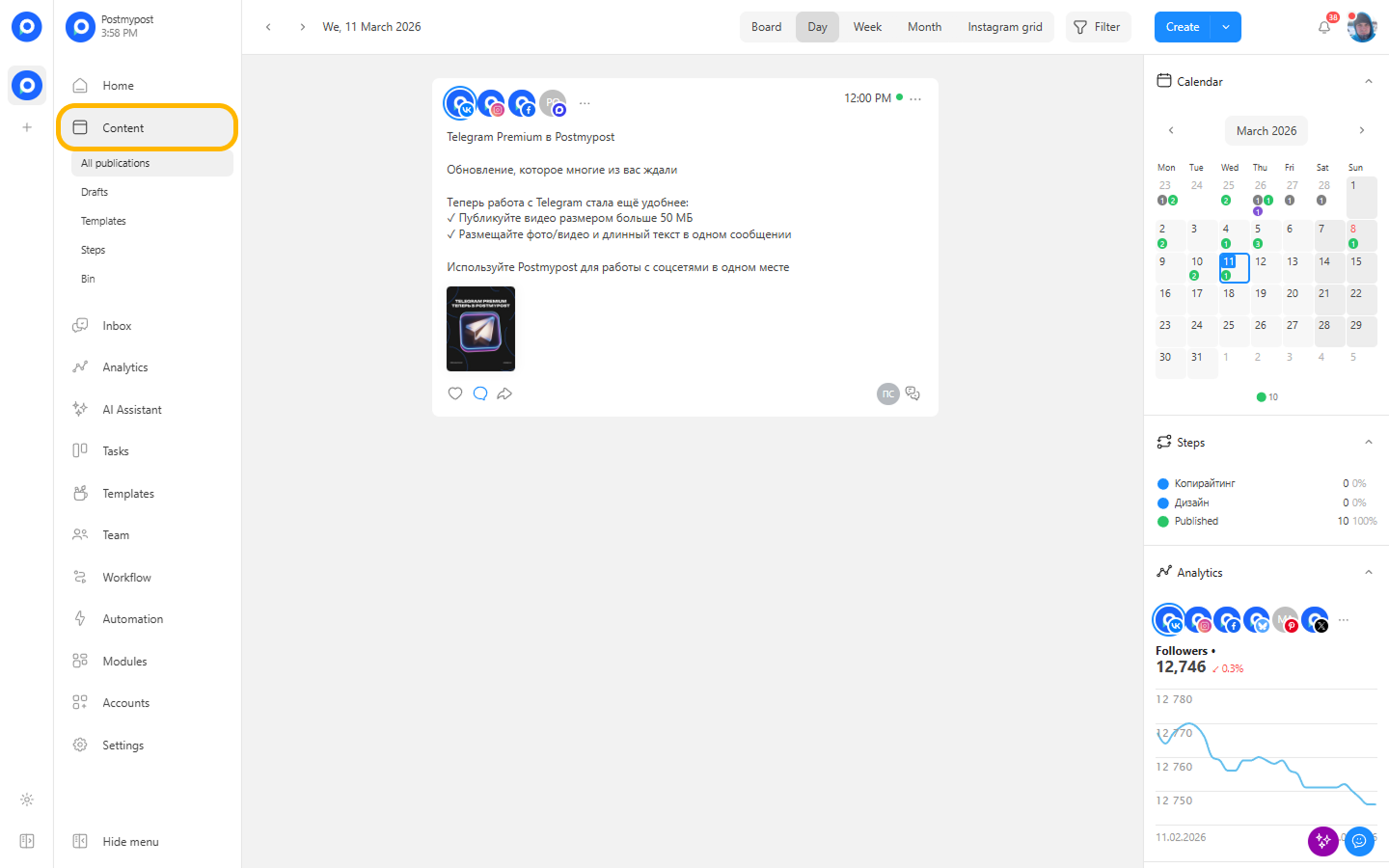
- Click "Create post".
https://app.postmypost.io/
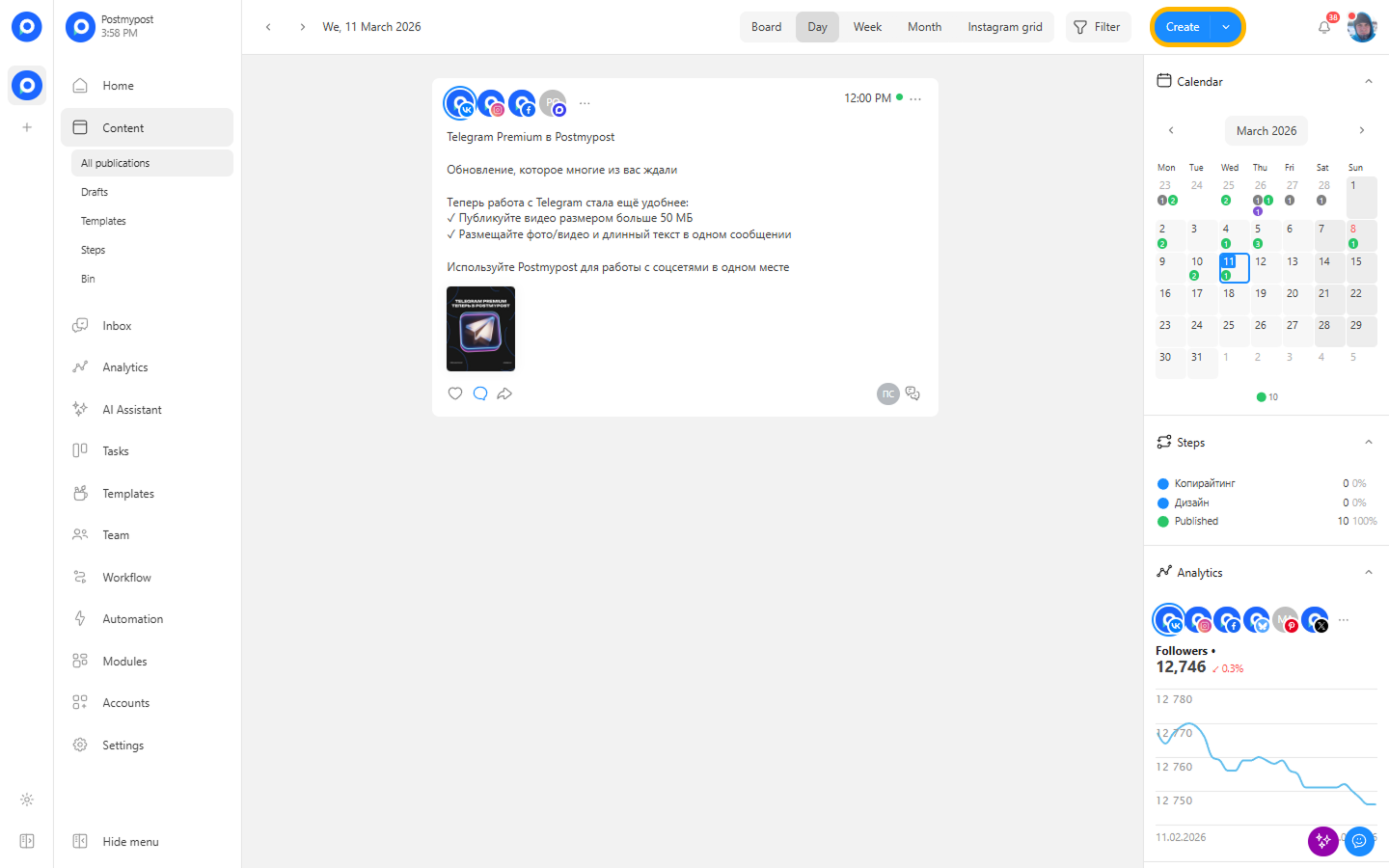
- Select one or more connected accounts where you want to publish.
https://app.postmypost.io/
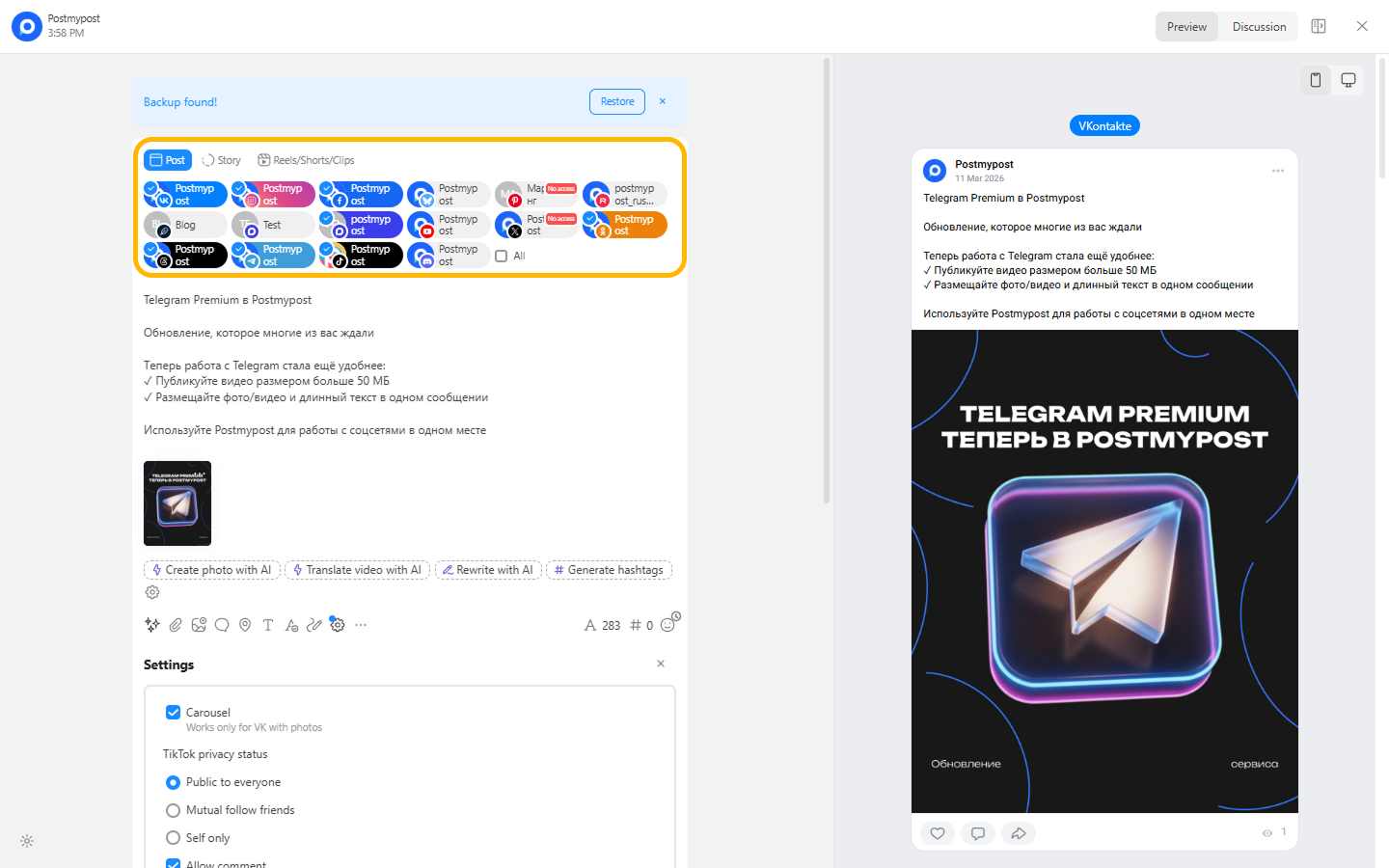
- Add text, images/videos, hashtags, and other elements.
https://app.postmypost.io/
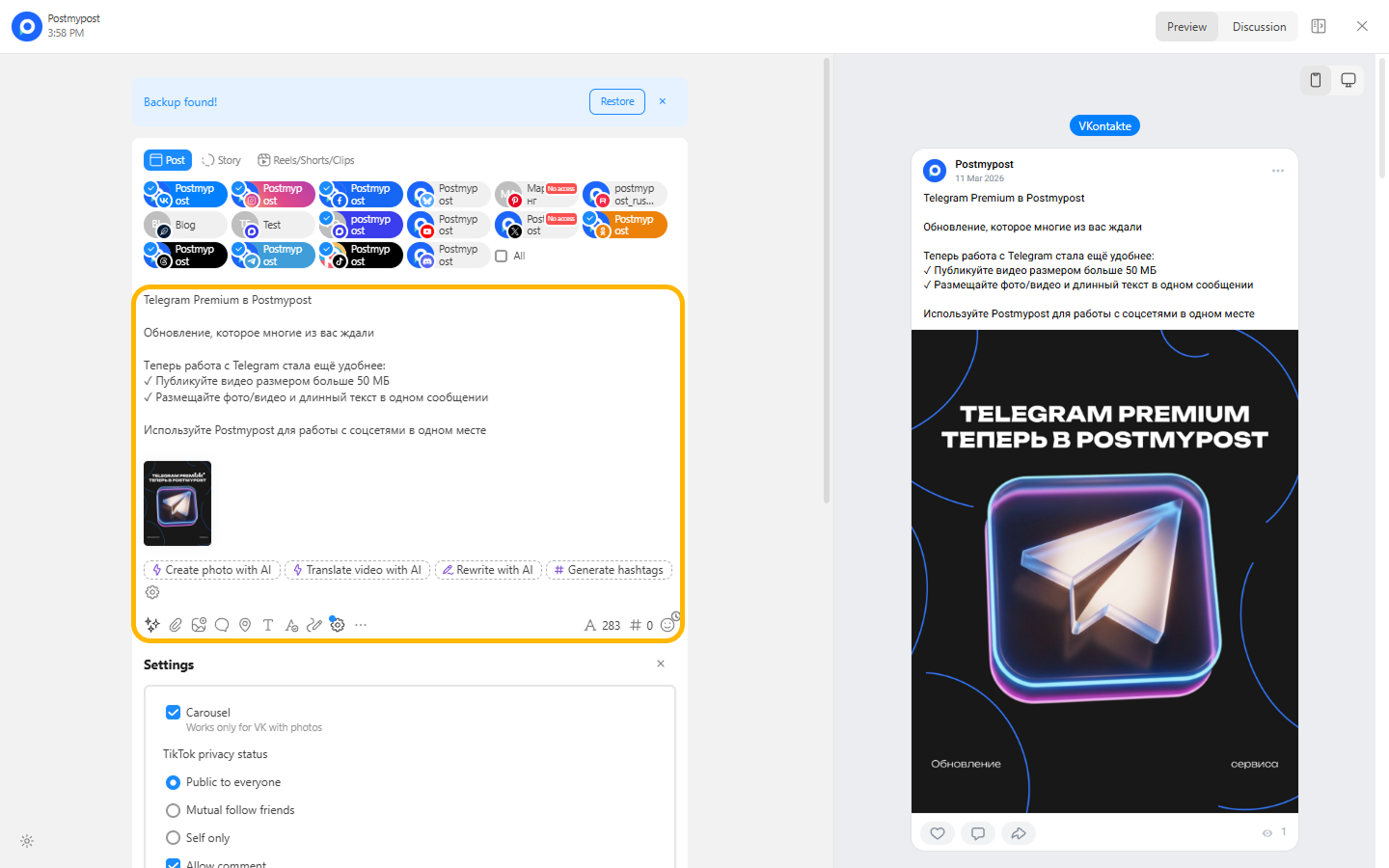
- If needed, schedule the publication time or save as a draft.
https://app.postmypost.io/
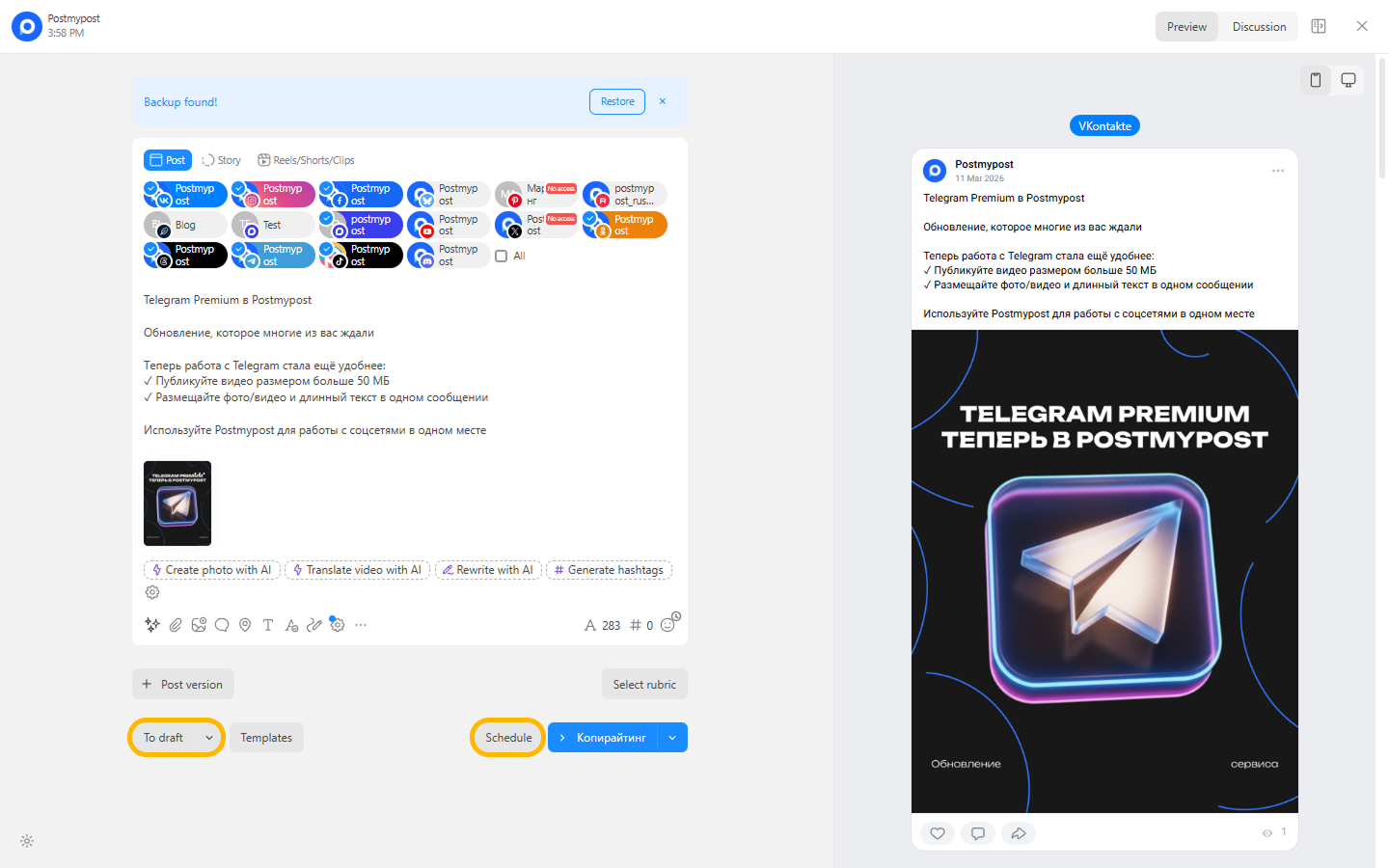
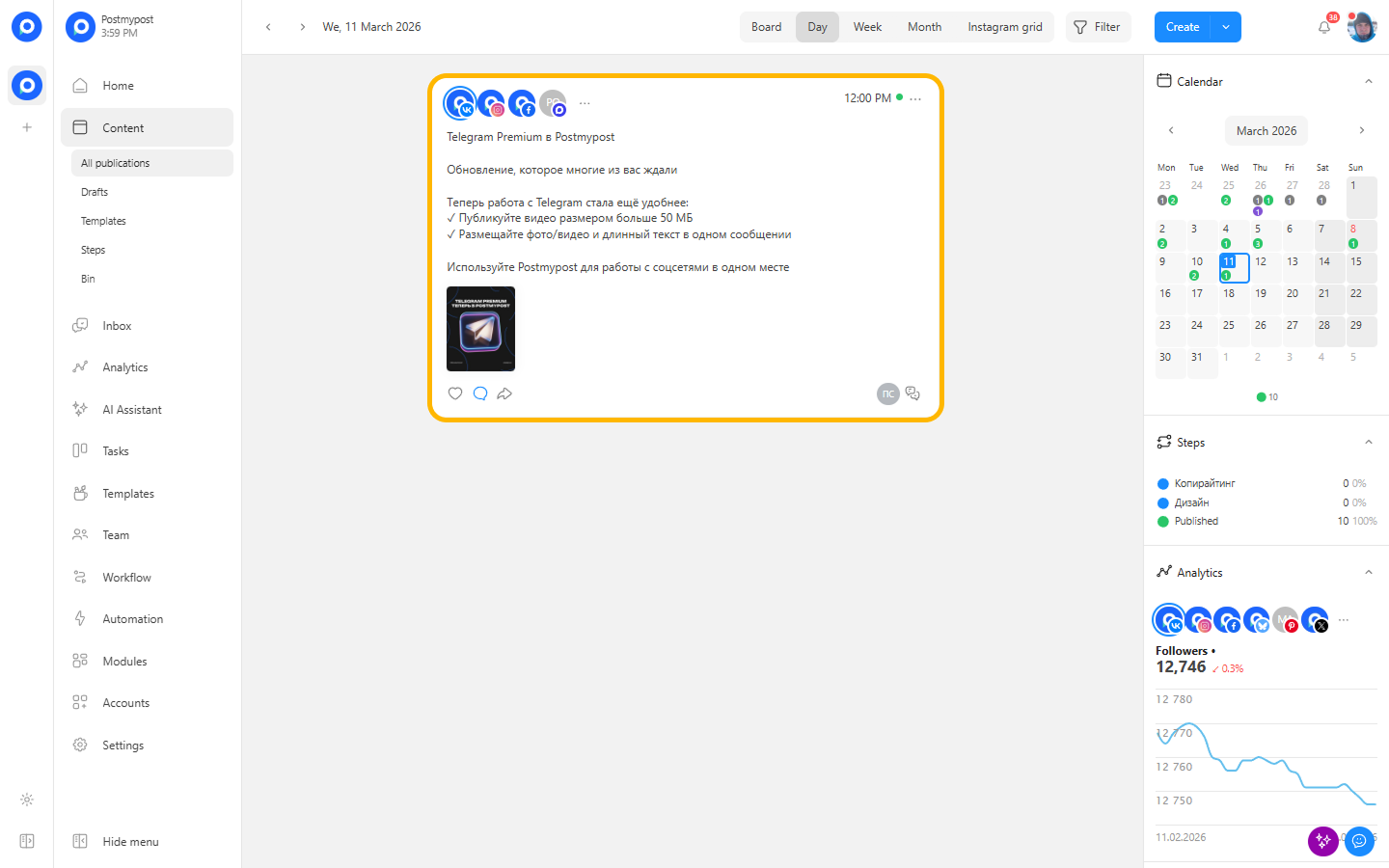
- Click "Publish" to publish the post immediately.
https://app.postmypost.io/
Tip: if you run into questions or errors while creating or publishing a post, check the Publications section — it contains FAQs and common issues.
Done! Your first post will be sent to the selected accounts.
Mobile app
This section provides a brief overview and step-by-step instructions to start using the Postmypost mobile app.
Sign in or sign up
If you already have an account:
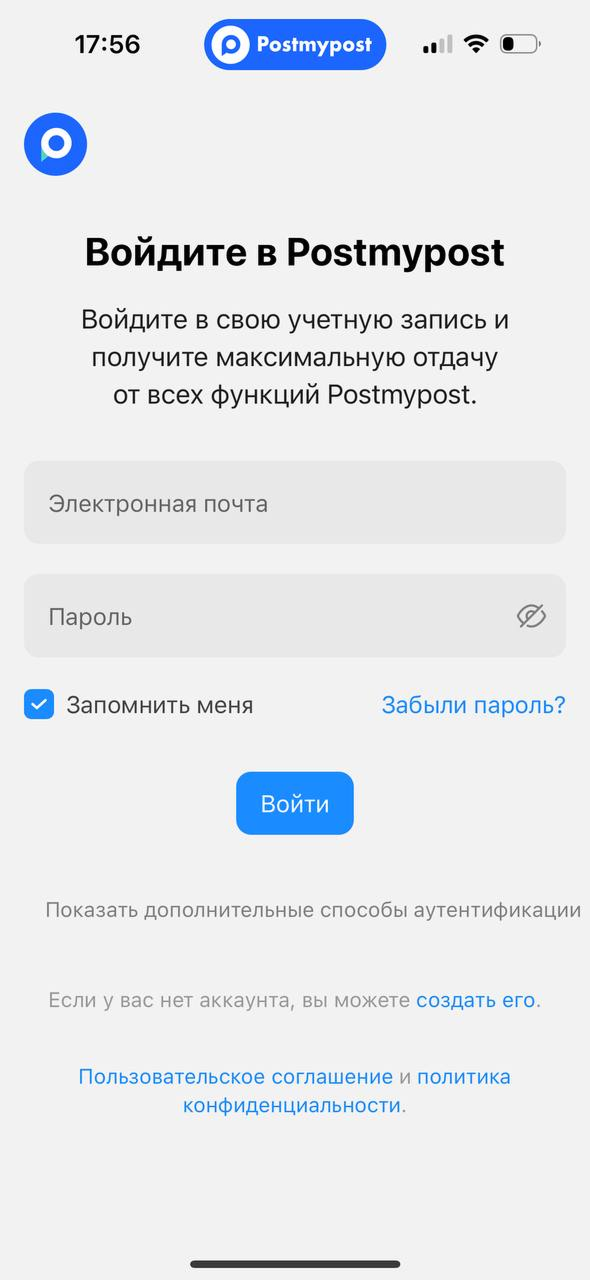
- Open the login screen in the mobile app.
- Enter your email and password, then tap "Sign in."
If you don't have an account yet:
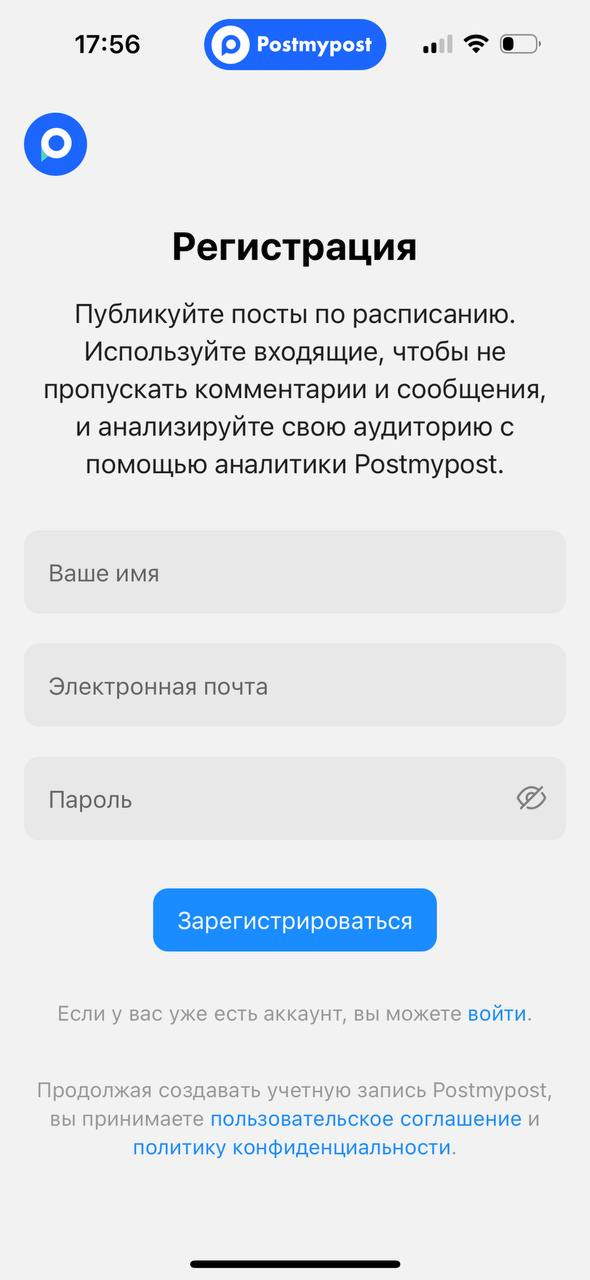
- Open the sign-up screen in the app.
- Enter your email, create a password, and complete the registration following the on-screen instructions.
Tip: after registration, you’ll get a trial period. Learn more in the Trial period section.
Choose a project and connect an account
Postmypost works with projects — a convenient way to separate brands, clients, or directions.
- Select an existing project or create a new one.
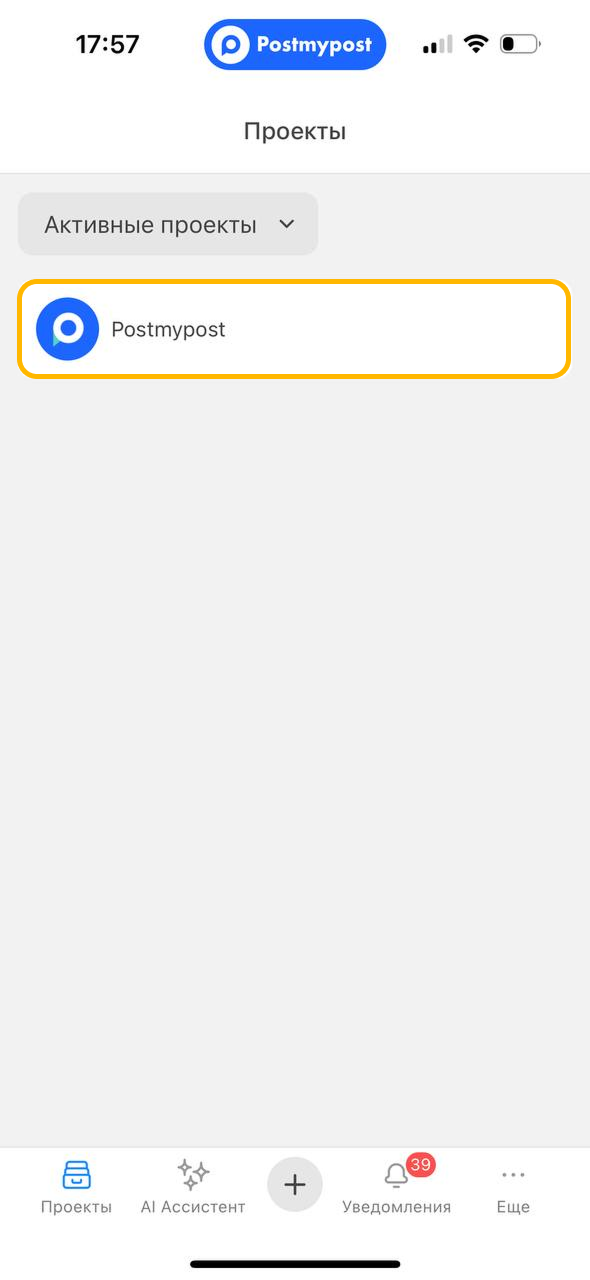
- Go to the "Accounts" section of the selected project.
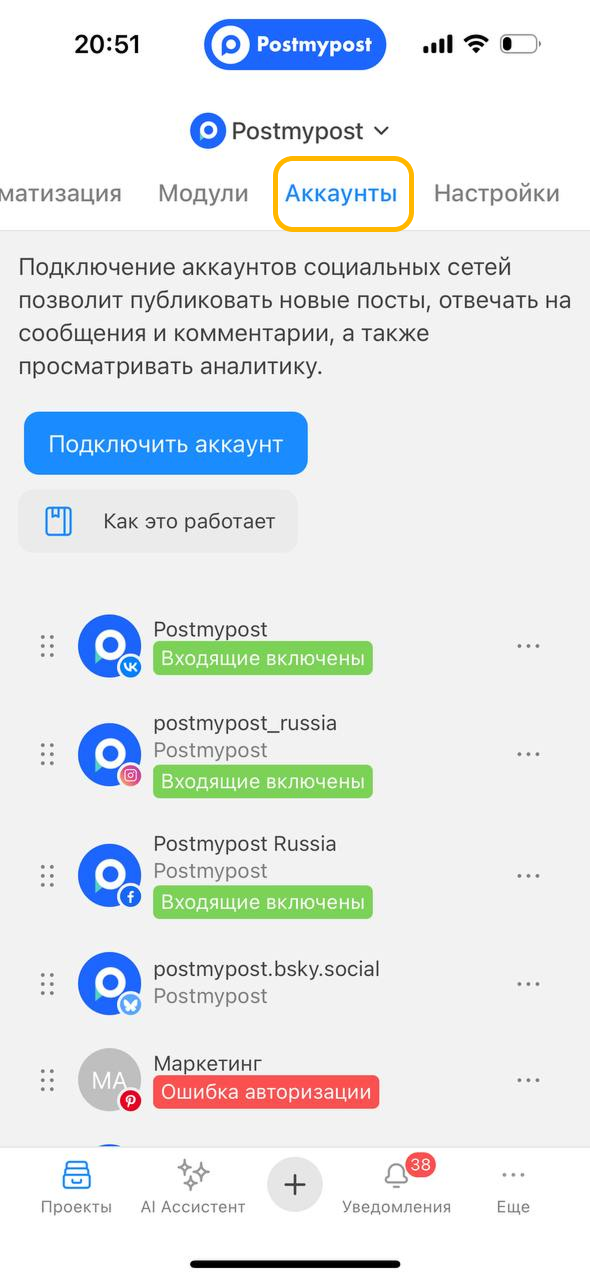
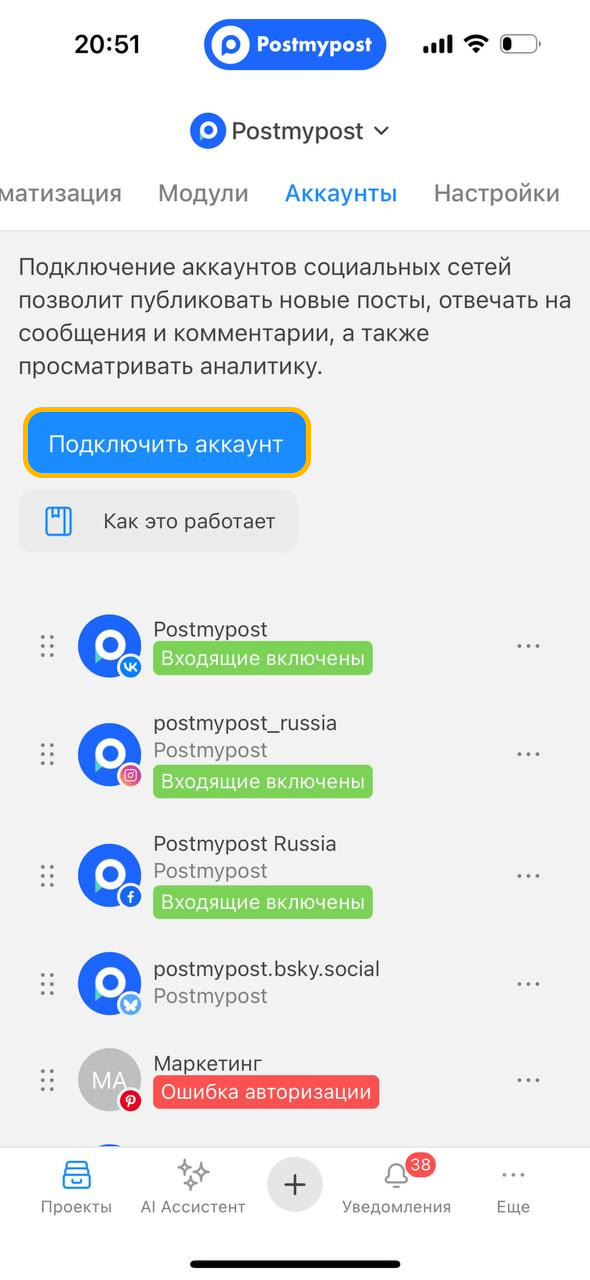
- Tap "Connect account" and follow the instructions for the selected social network.
- Choose the social network you need and open the connection guide.
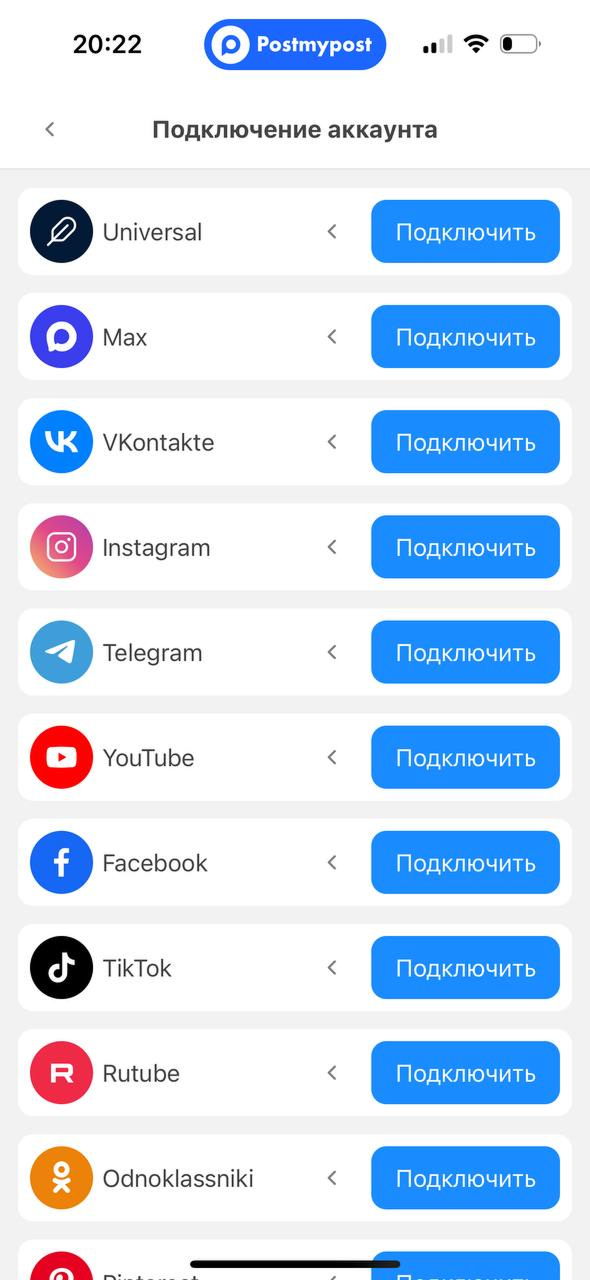 Follow the steps in the guide to connect the account to the selected project.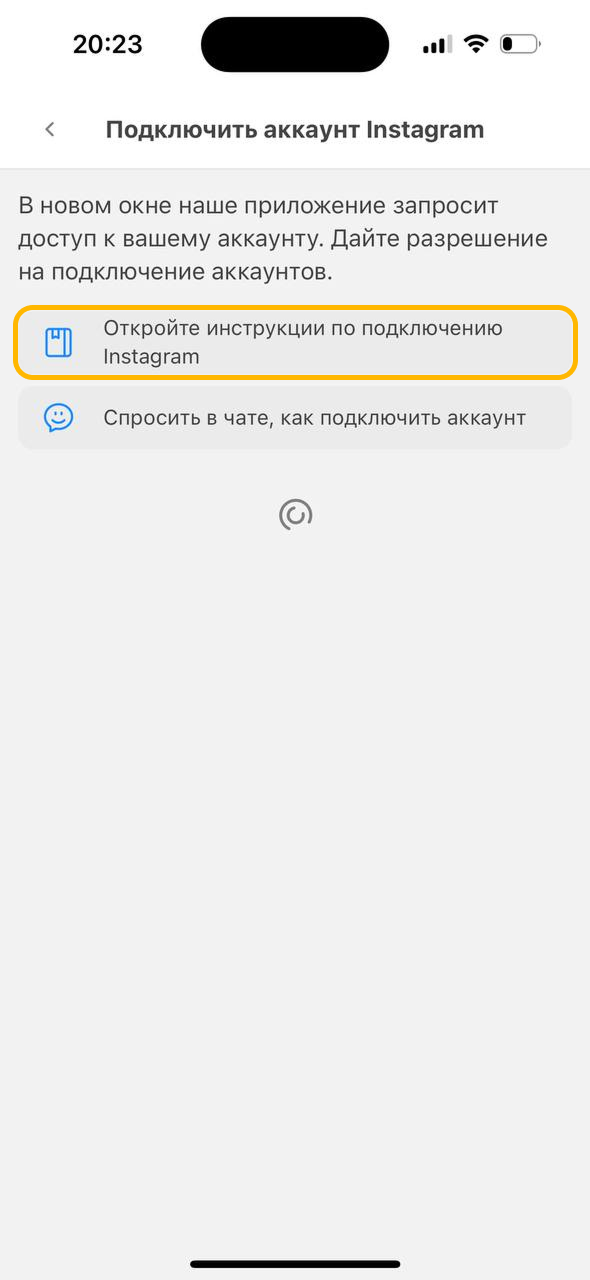
Create and publish a post
Once at least one account is connected, you can create posts.
- Open the "Content" section.
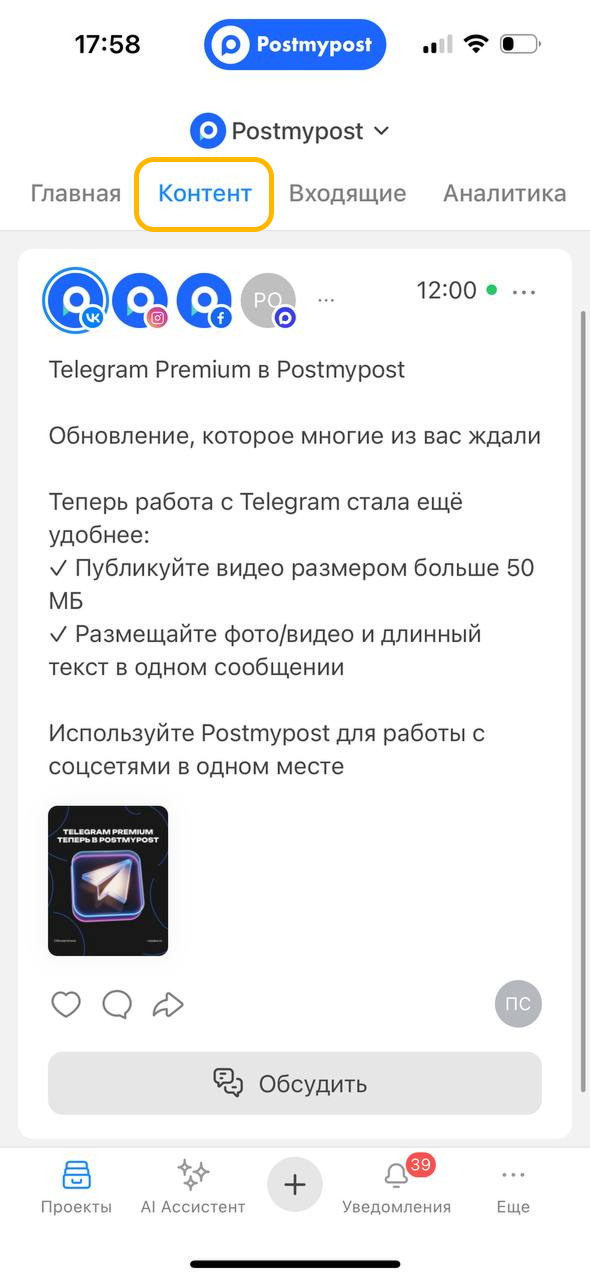
- Tap "Create post".
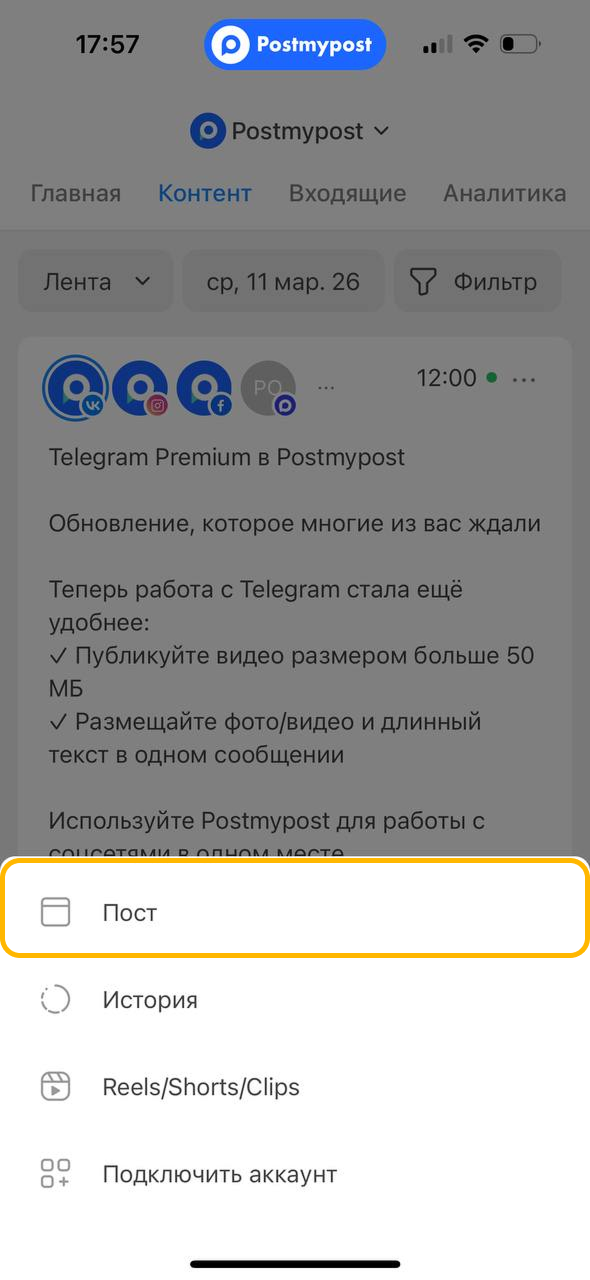
- Select one or more connected accounts where you want to publish.
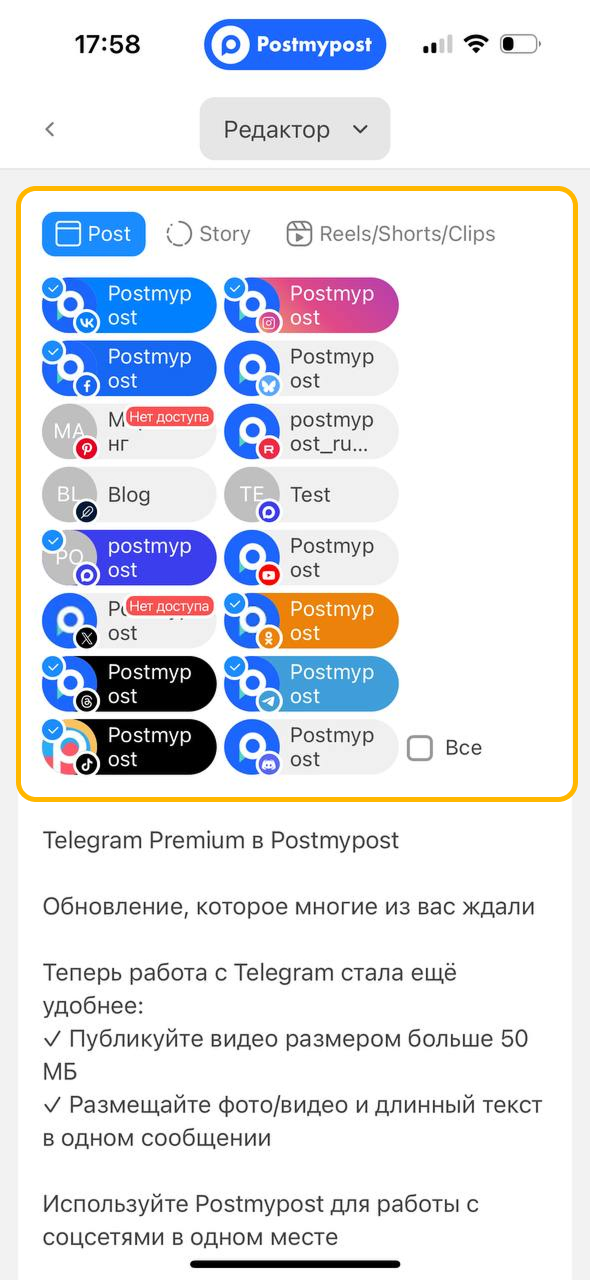
- Add text, images/videos, hashtags, and other elements.
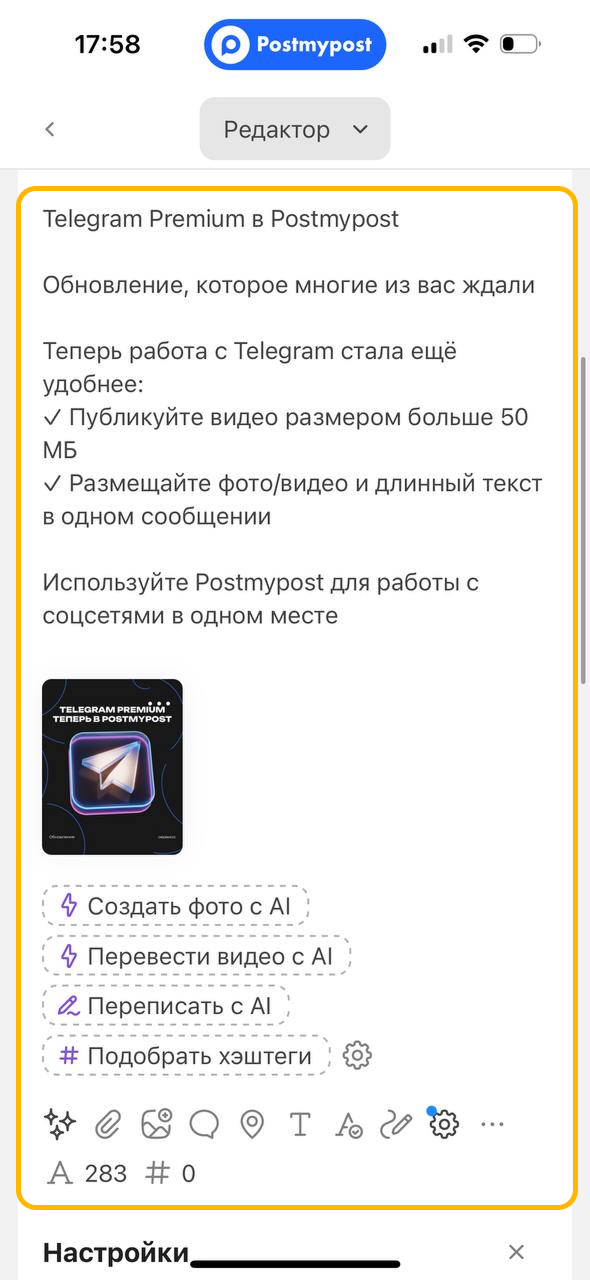
- If needed, schedule the publication time or save as a draft.
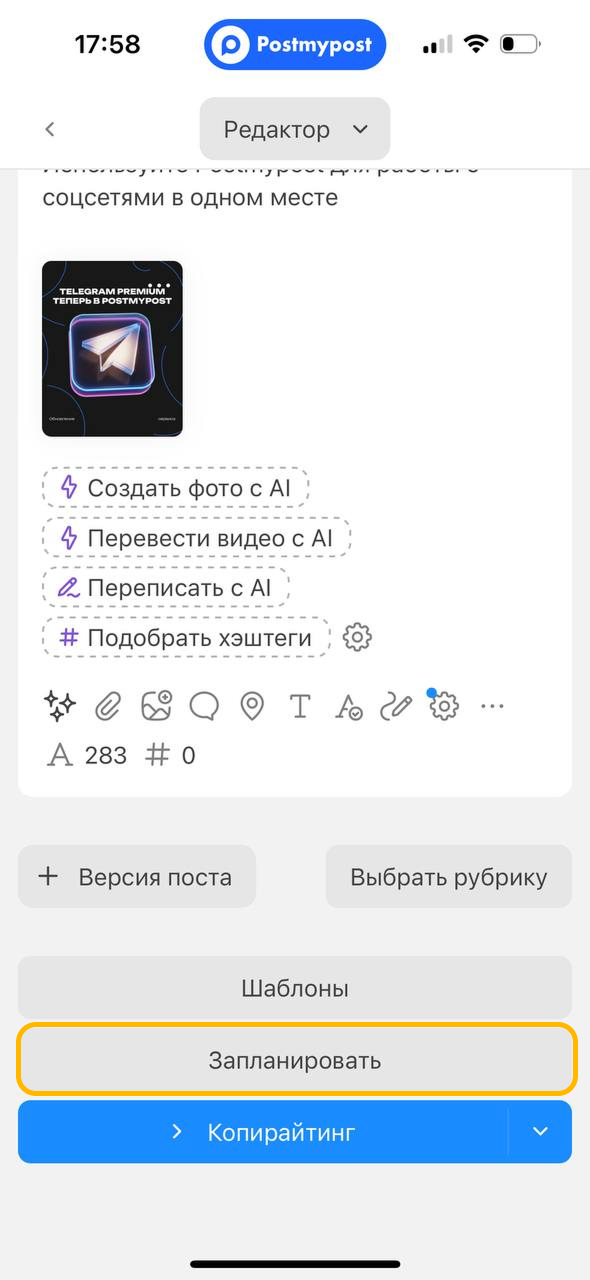
- Tap "Publish" to publish the post immediately.
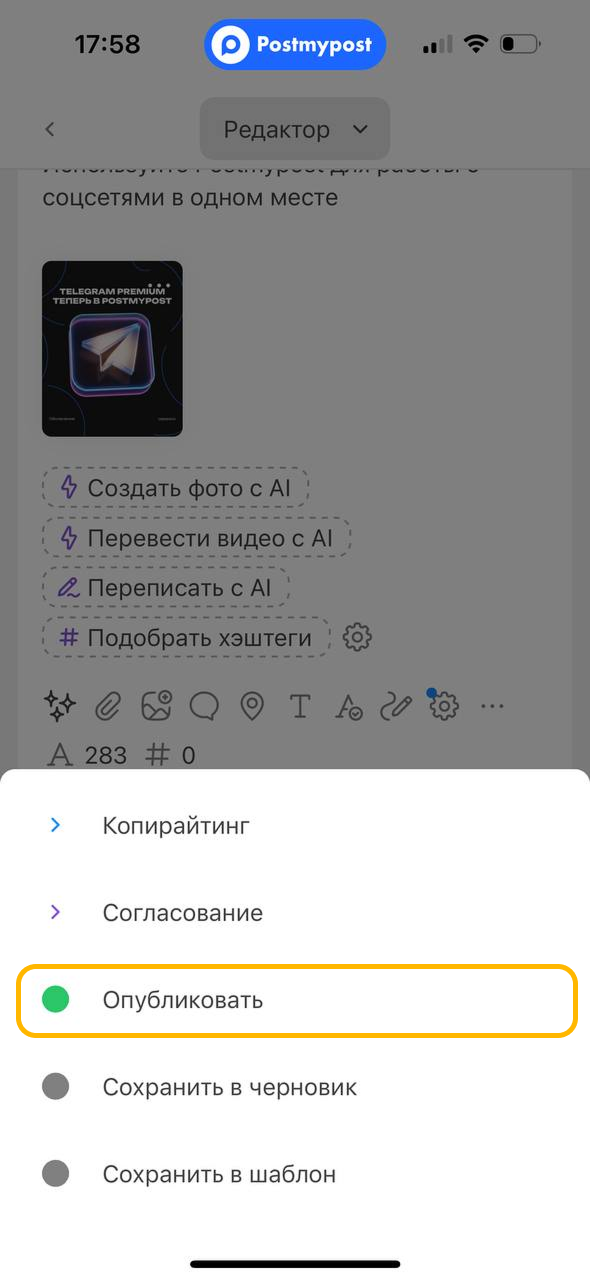
Tip: if you run into questions or errors while creating or publishing a post, check the Publications section.
What's next?
- Connect additional accounts and channels to publish via cross-posting.
- Explore analytics and reports on your publication results.
- To extend your capabilities, see the Tools section.